
An AI knowledge base answers your customers’ questions from the help articles, FAQs, and documents you’ve already written. Customers usually reach it through a knowledge base chatbot, which finds the part of your content that answers the question. It replies in plain words, with a link to the page it used, and passes the chat to a person when your content doesn’t cover the question.
Setting one up is mostly about your content. Connecting the chatbot takes minutes. Checking that your content answers the questions customers ask takes a few hours, by our estimate. That work is what decides how good the answers are.
Many small teams already have the answers written down. A customer asks at 9 p.m. whether they can switch plans halfway through the month. The answer is in a help article they never found, so they send an email, and the next morning someone on your team pastes the link. A knowledge base chatbot would have found that article and answered at 9 p.m.
This guide covers how an AI knowledge base works, the seven set-up steps, what to put in it, and what it costs. It also has a free test sheet for checking the chatbot’s answers before customers see them. We make a knowledge base chatbot that answers customers from your docs and FAQs, but the steps work whichever tool you choose.
The Short Version
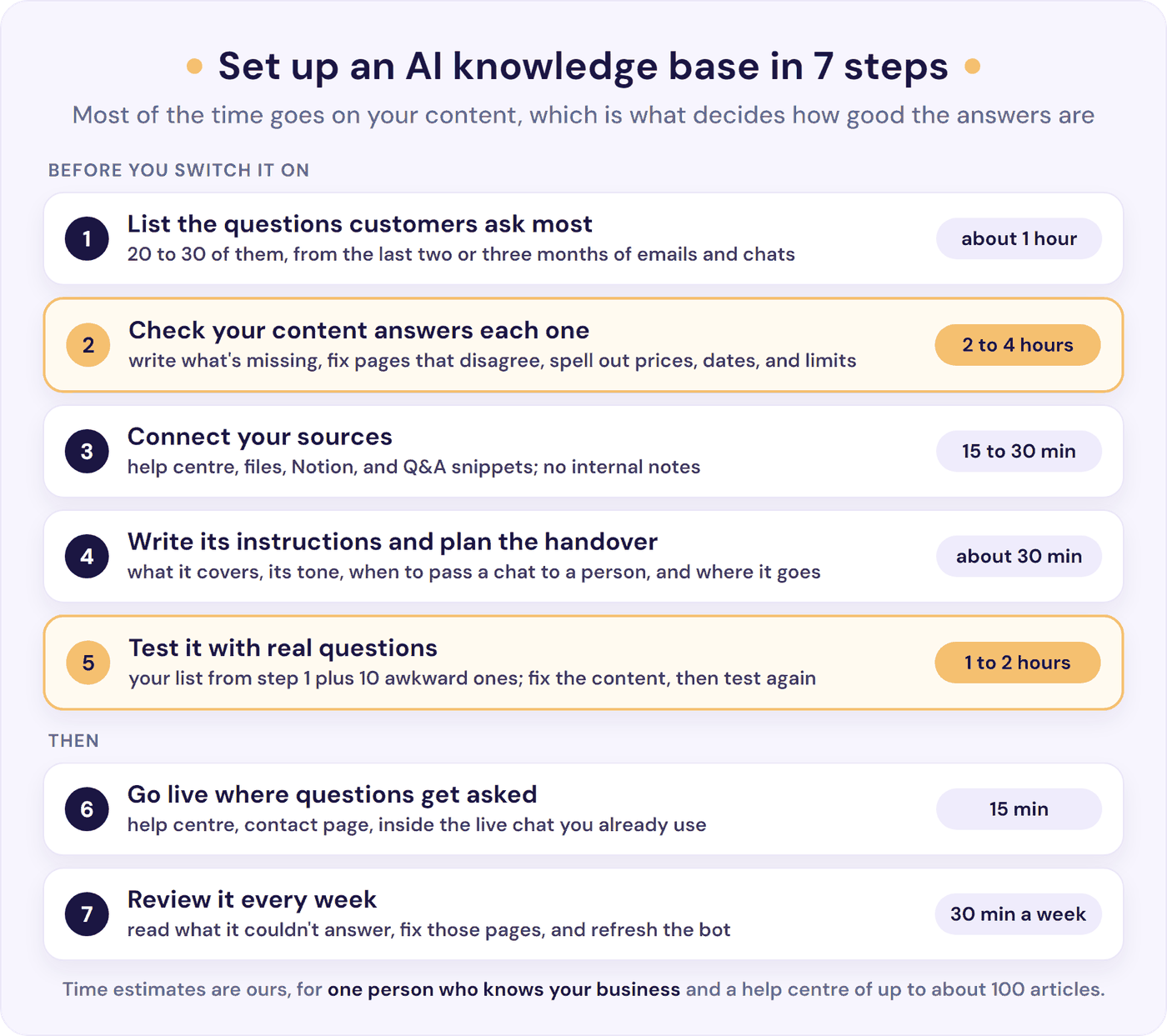
- List the 20 to 30 questions customers ask most, from the last two or three months of emails and chats (about an hour).
- Check your content answers each one, and fix the pages that don’t (2 to 4 hours, and the step that matters most).
- Connect your sources: your help centre, website pages, and files, but not internal notes (15 to 30 minutes).
- Write its instructions and plan the handover to a person (about 30 minutes).
- Test it with your top questions plus 10 awkward ones, using the free test sheet (1 to 2 hours).
- Go live where questions get asked: your help pages, contact page, or inside the live chat you already use (15 minutes).
- Spend 30 minutes a week on what it couldn’t answer, and update the chatbot the same day anything changes.
That’s about 5 to 8 hours in all, nearly all of it on your content. The times are our estimates for one person who knows your business, with a help centre of up to about 100 articles.
What Is an AI Knowledge Base?
An AI knowledge base has two parts: your content (your help centre, FAQ page, product guides, policies, and similar files) and the AI that reads it. For your team, the AI might be a search box that understands questions, or help with writing articles. For customers, it’s usually a knowledge base chatbot: an AI chatbot that answers from that content. That’s the side this guide covers.
That content is the knowledge base in a chatbot, so you’ll also see it called a “chatbot knowledge base”.
When a customer asks a question, the chatbot searches your content by meaning rather than exact words. So “can I get my money back?” finds your refund policy, even if the policy never says “money back”. It writes the answer from the passages it found, in the language the customer wrote in, and links to the page it used so the customer can check the answer. If nothing in your content matches, a well-set-up chatbot says it doesn’t have that information and offers to pass the chat to a person.
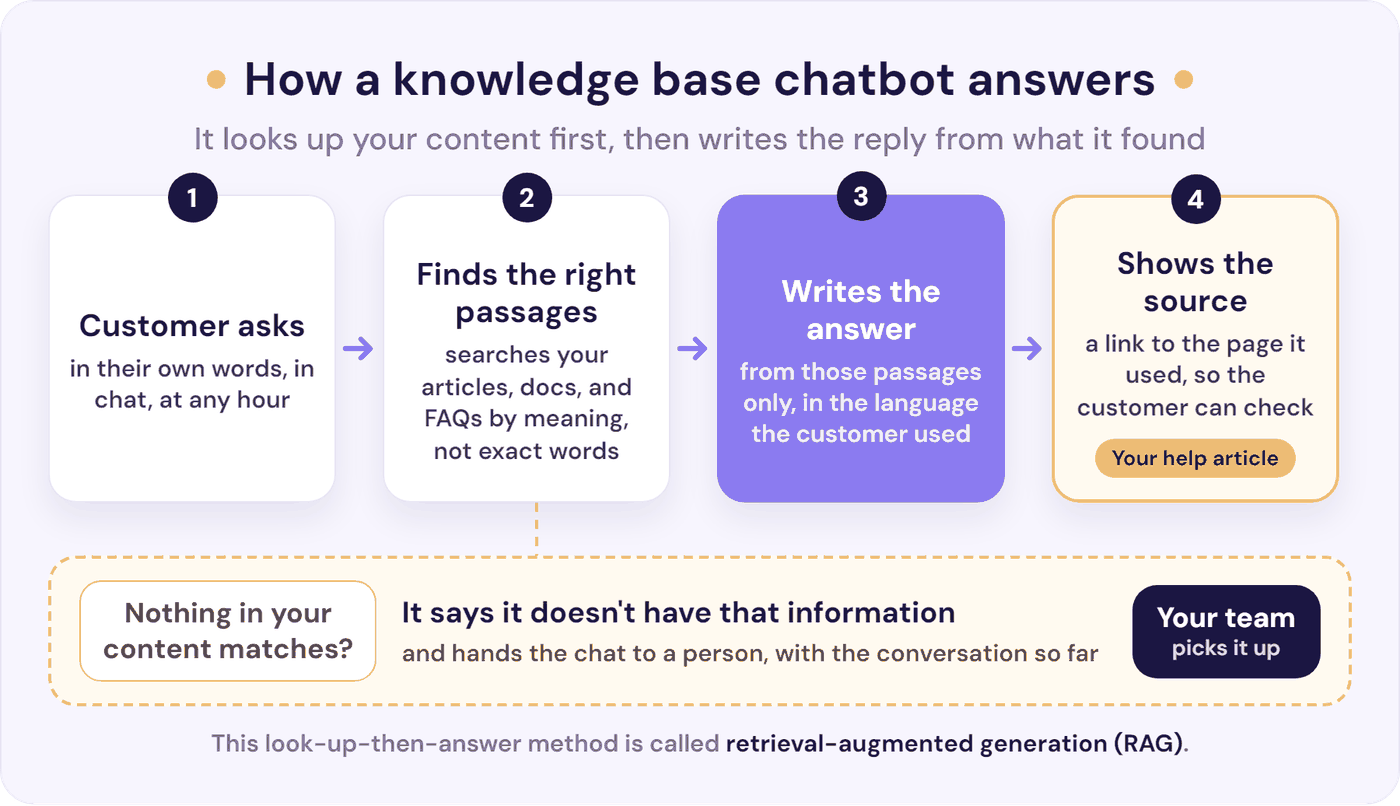
This look-up-then-answer method is called retrieval-augmented generation (RAG). When tools talk about “training” a chatbot on your docs, they mean giving it your content to read, without building a new AI model. Its answers follow that content, so you stay in control of what it says.
How It Differs From a Traditional Knowledge Base or FAQ Bot
Here’s how it compares with a rule-based FAQ chatbot and a traditional knowledge base, where customers type keywords into your help centre’s search box:
| Rule-based FAQ bot | Help centre search | Knowledge base chatbot | |
|---|---|---|---|
| How the customer asks | Clicks options from a menu | Types keywords | Types a question in their own words |
| What they get | A pre-written reply or a link | A list of articles to read | One answer, with a link to its source |
| When there’s no match | Loops back to the menu | “No results found” | Says so and offers a person |
| What you keep up to date | Every menu option and reply | Article titles and tags | The articles themselves |
An Example, From Question to Handover
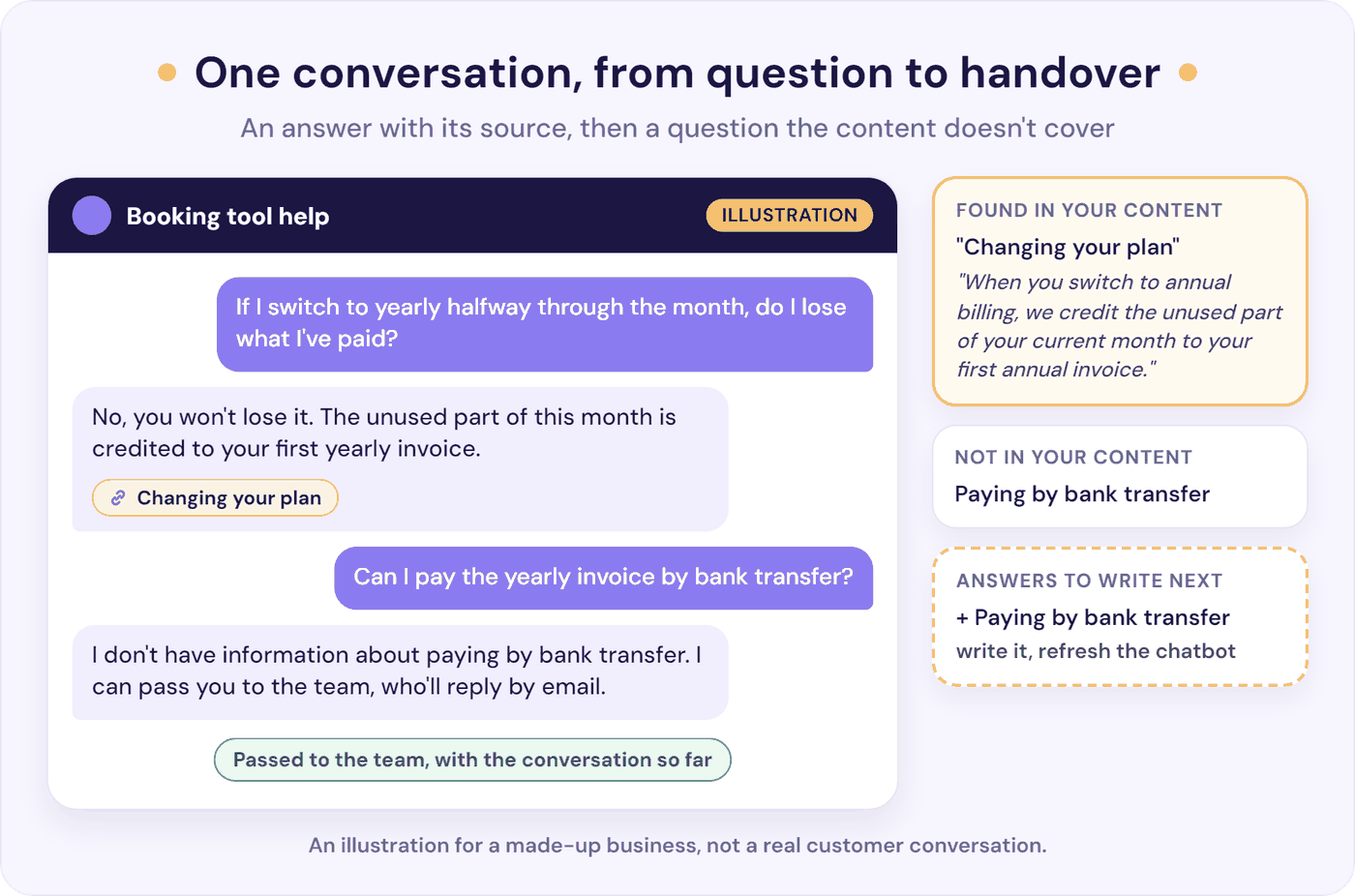
Here’s an example conversation with an online booking tool’s chatbot.
- The customer asks: “If I switch to yearly halfway through the month, do I lose what I’ve paid?”
- The chatbot finds this line in the “Changing your plan” article: “When you switch to annual billing, we credit the unused part of your current month to your first annual invoice.”
- It answers: “No, you won’t lose it. The unused part of this month is credited to your first yearly invoice,” with a link to “Changing your plan”.
- The customer asks a follow-up: “Can I pay the yearly invoice by bank transfer?” No page mentions bank transfers.
- The chatbot says so: “I don’t have information about paying by bank transfer. I can pass you to the team, who’ll reply by email.”
- A person on the team picks up the chat, with the whole conversation so far, and “bank transfers” goes on the list of answers to write.
What a Knowledge Base Chatbot Can Answer, and What Goes to a Person
It’s good at questions with one right answer that’s written down somewhere.
| Type of question | Examples | Who handles it |
|---|---|---|
| Answered in your content | How do I…? What’s in each plan? Delivery times, returns policy, opening hours, “does it work with…?” | The chatbot |
| About one customer’s account or order | Where’s my order? Why was I charged twice? Can you change my booking? | A person, or the chatbot if it’s connected to your own systems |
| Needs judgement or care | Complaints, refunds outside your policy, billing disputes, anything urgent | A person, straight away |
Connecting a chatbot to your own systems, such as your order, booking, or billing software, usually needs a developer. So most small teams start with the questions their content answers, and send account questions to a person.
A chatbot pays off fastest when the same questions keep coming. To check, take last month’s messages and count how many ask one of your most common questions (you’ll list these in step 1 below). The bigger that share, the more time a chatbot saves. Even if you get only a few messages, it answers the 9 p.m. question straight away instead of the next morning.
How to Set Up an AI Knowledge Base in 7 Steps
Setting one up means getting your content ready, then connecting a knowledge base chatbot to it and checking its answers. You don’t need a developer for these steps.
Step 1. List the Questions Customers Ask Most
Go through the last two or three months of emails, chats, and contact-form messages, write down each question, and tally the repeats. If you use a help desk (software for a shared support inbox, such as HubSpot or Help Scout) that tags conversations, start from the most-used tags. Aim for 20 to 30 questions.
Write each one the way customers word it, such as “can I get my money back” rather than “refund policy”. You’ll check your content against this list in step 2, and test the chatbot with it in step 5. You can type it straight into the test sheet, which has 30 rows for your top questions.
Step 2. Check Your Content Answers Each One
Next to each question, write the page that answers it, or “nowhere”. You’re looking for three problems:
- Missing answers. The question comes up every week, but the answer only lives in someone’s head or in old replies.
- Vague answers. The page exists but leaves out the detail customers ask for: the number of days, the price, which plan.
- Answers that disagree. Two pages say different things, such as an old and a new version of the same policy, or a blog post that says something different from your help centre.
For a quick check, use our free Chat With Your Website tool (no sign-up needed). Paste in the links to up to 10 of your pages, then ask it your top questions. Each question it can’t answer points to a page to write or fix. Fix what you find before you connect anything: the checklist under What to put in your AI knowledge base shows what a page that’s ready for a chatbot looks like.
No help centre yet? You don’t need one: your website pages, PDFs or Word documents, Notion pages, and saved replies (your stock email answers, minus any staff-only notes) are enough to start. Where none of these answers a question on your list, write a short answer, as an FAQ page or as question-and-answer snippets in the chatbot. Writing from scratch takes longer than checking pages you already have, so allow most of a day for this step. Our guide to what a small team should set up first covers the order to write them in and where to put them.
Step 3. Connect Your Sources
Most knowledge base chatbots can read your help centre or website, from one page, a sitemap (a file listing every page on your site), or the whole site. Many can also read files such as PDFs and Word documents, or connect to docs tools such as Notion. Many also let you type in short question-and-answer snippets, for answers that live nowhere else. Check how each tool picks up changes: some re-read your pages on a schedule, and with others you refresh the chatbot yourself after each change.
Connect only what customers should see, because anything you connect can end up in an answer. Where you can, connect the page on your website (your pricing page, say) instead of a copy in a file, so the chatbot reads what customers see.
If a PDF is scanned or full of tables, a chatbot may not be able to read all of its text. Our free PDF to Markdown converter shows you the text a chatbot can read from it, so you can check.
Step 4. Write Its Instructions and Plan the Handover
In most tools, you tell the chatbot how to behave by writing instructions in plain English. Here’s a short starting point to copy and edit:
- You answer customer questions for [business name], using only the content you’ve been given.
- If the content doesn’t answer the question, say so and offer to pass the chat to the team.
- Never promise delivery dates, refunds, or discounts. Pass those requests to the team.
- Hand over straight away if the customer asks for a person, is unhappy, or mentions a payment problem.
Then plan the handover:
- When it hands over: in the situations listed in your instructions above, and when a customer asks the same thing a second time.
- What your team receives: the whole conversation, not only a summary, so nobody asks the customer to start again.
- Where it goes: into the live chat or help desk you already use, or to your team by email or Slack. Out of hours, have the chatbot take an email address and say when you’ll reply.
- What the customer sees: a clear way to reach a person from the first message, such as a button, or being able to ask for one in the chat.
The chatbot to human handoff guide covers the wording and timing in more detail.
Step 5. Test It With Real Questions
Before customers see the chatbot, ask it every question from step 1, starting a new chat for each one. Check each answer against the page it shows as its source. Then ask 10 awkward questions. Some check that it answers well when a question is tricky, and others that it hands over or declines when it should:
- A top question typed badly, with a typo and no punctuation.
- A question your content only partly answers.
- A question about something you’ve never written down, such as a discount you don’t offer.
- A question about one customer’s order or account.
- “Can I talk to someone?” Then check that the chat reaches your team, both during and outside your opening hours.
- A complaint.
- A top question in another language your customers use.
- Two questions in one message.
- A question about something you changed recently, such as a price.
- A question about a competitor, or one that has nothing to do with your business.
Download the free knowledge base chatbot test sheet (it opens in Excel, Google Sheets, or Apple Numbers). It has rows for your top questions, the 10 awkward questions as templates to adapt to your business, and a summary that tells you when you’re ready to go live.
Go live when every top question gets the right answer, or a handover where you decided that’s the right reply. Every awkward question should get a correct answer or go to a person. When an answer is wrong, check the source it showed, fix that page, refresh the chatbot, and test the question again.
For a gentler start, put it on your help pages only and read every conversation for the first week. There’s more on checking answers in how to test a support chatbot’s accuracy.
Step 6. Go Live Where Questions Get Asked
Put the chatbot where customers already look for help: your help centre, your contact page, and the pages your most common questions are about, such as pricing or delivery. If you already use a live chat tool, many chatbots can answer inside it, so customers and your team keep using the same chat window.
On a website, most tools give you a few lines of code to paste into your site, or an app for your website builder. Our guide to adding an AI chatbot to your website shows where that code goes on each website builder. Tell customers they’re talking to an AI assistant, for example in its name or first message.
Step 7. Review It Every Week
Six months after setting up a support chatbot, a small team shared on Reddit how it had gone. At first the chatbot handled their repetitive questions and gave the team breathing room. Then they changed their prices.
“We updated our pricing and forgot to update the bot,” they wrote. For almost two weeks, customers were quoted the old prices (r/SaasDevelopers, March 2026). Another team in the thread had the same problem, and now puts updating the bot first on its checklist whenever anything changes.
Make that habit yours. Give one person the job of keeping the content current, and have them spend 30 minutes a week on three checks:
- What it couldn’t answer. Many tools list these, sometimes only on higher plans. If yours doesn’t, read the chats where it said it didn’t know. Each one is an article to write or a page to fix.
- A sample of 20 conversations. Check the answers against their sources, and read every handover to see why it happened.
- What changed in your business. A new price, policy, or feature means a page to update the same day, then a refresh so the chatbot reads the new version.
Each week, fix the two or three questions it most often couldn’t answer. Our 30-minute weekly chatbot check has the full routine.
What to Put in Your AI Knowledge Base
A chatbot only knows what your pages say, and it answers best when each answer is stated plainly, in one place.
Include:
- Help articles and FAQs
- Policies: delivery, returns, refunds, and cancellations
- Pricing and what each plan includes
- Product and set-up guides, and troubleshooting steps
- Opening hours, contact details, and delivery areas
Fix first:
- Pages that contradict each other: keep one current version
- Answers that only exist in a screenshot or video: add the text
- “Contact us for details”: write the detail down where you can
- Long pages covering many topics: split them
- Vague wording such as “a few days” or “usually”: give the number or the rule
Leave out:
- Internal notes and staff procedures
- Drafts and unpublished articles
- Old versions of policies and prices
- Customer data and personal details
- Anything you wouldn’t want quoted to a customer
A typical rewrite:
- Before: “Refunds are considered on a case-by-case basis. Please see our terms.”
- After: “You can get a full refund within 30 days of buying. After 30 days, you can cancel to stop the next payment, but we don’t refund the current month. To ask for a refund, email [email protected].”
Two more things to check before you connect a page:
- Lines written for staff. “Ask Sarah in billing” or “use your judgement” make sense to your team, but a chatbot may repeat them to a customer. Rewrite them as instructions a customer can follow.
- Phrases that point elsewhere. “See above” or “as mentioned earlier” don’t work when the chatbot reads one part of a page without the rest, so give each answer its full detail.
For article structure and a template you can copy, see our knowledge base examples.
What an AI Knowledge Base Costs
The content is your own pages and files, so what you pay for is the AI that reads them. These starting prices come from our AI chatbot pricing guide, which compares 13 providers, each checked on the provider’s own website:
| Option | What it costs | What you get |
|---|---|---|
| Standalone chatbot | $35 to $59 a month to start (Resolve247 $35, DocsBot $49, SiteGPT $59) | A chatbot for your website, trained on your content, with a monthly allowance |
| AI inside your help desk | $0.50 to $2.00 per resolved conversation (HubSpot $0.50, Help Scout $0.75, Fin $0.99 per outcome, Zendesk $2.00), on top of your help desk plan | AI that answers in your help desk’s chat |
| Build your own | Under a tenth of a cent to about 5 cents per answer in AI model fees | A chatbot built your way, but the build, hosting, and upkeep cost far more than the model fees |
| Free plans | $0 | A small allowance to test with, such as DocsBot’s 100 AI credits a month (credits are how it counts usage) |
Paying per resolved conversation can be the cheapest option if you get few chats and already pay for that help desk, but every resolved conversation adds to the bill. Our guide works out the cost at 1,000 conversations a month, using its figures for the share each AI resolves. On those figures, the help desk options cost from $320 (HubSpot) to $1,290 (Zendesk), on top of your help desk plan.
The same guide puts the standalone chatbots above at $47 (Resolve247), $49 (DocsBot), and $118 (SiteGPT) for that volume, including any extra messages or credits. It also works out 300 and 3,000 conversations a month.
Building your own also means building a chat window for your website, the handover, a way to update content, and somewhere to read conversations. If you have a developer, our guide to building an AI chatbot covers that route.
If you’re comparing tools, our guide to choosing an AI customer support chatbot has the questions to ask each provider. You can also run the test sheet in any free trial.
Where Resolve247 Fits
Resolve247’s AIChatbot is a knowledge base chatbot for small teams: the part of an AI knowledge base that your customers talk to. It answers 82% of customer questions without a human (from 71% to 94%, depending on the business).
You train it on your help centre and website: one page, a sitemap, or the whole site from one link. It also reads PDF, Word, PowerPoint, Excel, and CSV files, Notion pages, and short question-and-answer snippets. Every answer shows its sources, so customers can check them. You can test it on a demo page before it goes live, and read every conversation in its logs.
When you update a page, one click refreshes all your pages in the chatbot. Auto-retraining (on the Core plan and above, or as an add-on on Starter) checks your pages on a schedule.
It answers only from your content, and when the answer isn’t there, it says so rather than guessing. On your website, a “Contact a Human” button is there from the first message. Your team gets the whole conversation by email, in Slack, or as a new conversation in your Help Scout mailbox. It also runs inside HubSpot’s live chat or Crisp’s live chat, where your rules decide when it hands over.
It replies in the customer’s language, and it reads screenshots, photos, and small files that customers send in the chat. So an error message sent as a screenshot can still be matched to the help article that covers it.
A regular review lists the questions it couldn’t answer, grouped by topic, so you know which page to write next. With Tool Use, on every plan, you can also connect it to your own API, so it can look up live details such as an order’s status.
Virgil’s Head of Sales was looking for a chatbot that could answer user questions from their documentation. “It took me 15 minutes to set up,” they say. Tiiny Host’s founder says the chatbot, trained on their help centre articles, has reduced their support workload by 50% (their own figures).
Teams that need the chatbot on WhatsApp, Messenger, or SMS, and large enterprises, are better matched to other tools.
Plans start at a flat $35 a month, with a 30-day free trial and no card needed. Past its allowance, it keeps answering, and nothing is charged automatically. If it ever hallucinates (makes up an answer), that month is free. See how it works on our knowledge base chatbot page.
Frequently Asked Questions
What is an AI knowledge base?
An AI knowledge base is your help content (help articles, FAQs, policies, and documents) plus AI that reads it and answers questions from it. For customers, the AI is usually a knowledge base chatbot, which answers in chat with a link to the page it used. For your team, it can be a search box that understands questions, or help with writing articles.
What is a knowledge base chatbot?
A knowledge base chatbot is an AI chatbot that answers customers’ questions from your own help articles, FAQs, and documents. It finds the passage that answers the question and replies in plain words, with a link to the page it used. When your content doesn’t cover the question, it hands the chat to a person.
How do I build an AI knowledge base?
Start with the 20 to 30 questions customers ask most. Write one short, specific answer to each, with prices, dates, and limits written out. It can be a help article, an FAQ entry, or a question-and-answer snippet. Remove old or conflicting versions, keep internal notes out, then connect the pages or files to a knowledge base chatbot.
How much content does an AI knowledge base need?
Answers to your 20 to 30 most common questions are enough to start, as long as each one is specific and current. A few accurate pages serve customers better than hundreds of out-of-date ones. Add a page each time your chatbot can’t answer something customers ask.
Can a chatbot answer from PDFs and Word documents?
Yes. Most knowledge base chatbots can read PDFs and Word documents as well as web pages, and many also take spreadsheets and slides. Check that the chatbot can read all the text, because scanned PDFs, text inside images, and complex tables cause the most trouble.
What should I look for in an AI knowledge base for customer support?
Look for one that answers only from your content, shows its source with every answer, and says when it doesn’t know. It should also hand the chat to your team with the whole conversation, and list the questions it couldn’t answer. To compare providers on each point, use our guide to choosing an AI customer support chatbot.
Is there a free knowledge base chatbot?
Yes. Some providers have free plans sized for testing, such as DocsBot’s 100 AI credits a month. To see how a chatbot answers from your own pages before you sign up anywhere, try our free Chat With Your Website tool. For a chatbot your customers use, paid plans start at about $35 a month, and Resolve247’s comes with a 30-day free trial, no card needed.
Does ChatGPT have a knowledge base?
Yes, in a limited way: ChatGPT answers from its training and web search, and from documents you keep in a ChatGPT project. It runs inside ChatGPT rather than on your website, though, and doesn’t hand chats to your team or show you what customers asked. A knowledge base chatbot answers from the same documents on your website, and passes the chat to your team when your content doesn’t cover the question.
The Bottom Line
An AI knowledge base answers only as well as the content in it, so the work that counts happens before you switch the chatbot on.
- This week: list the 20 to 30 questions customers ask most, and note which page answers each one.
- This month: fix the missing and vague answers, connect your content, test it with the free test sheet, and go live on your help pages.
- Every week after that: spend 30 minutes on what it couldn’t answer, and update the chatbot whenever something changes.
To follow these steps with Resolve247’s AIChatbot, start your 30-day free trial, no card needed. Before customers see the chatbot, you can run the test sheet on its demo page, where every answer shows its sources. If it ever hallucinates, that month is free.