
Introduction
The right way to add an AI chatbot to your website depends on three things: your existing set-up (the platform, CRM, or live chat you already use), what you want the AI to actually do (customer support, lead capture, or a marketing assistant), and the time and budget you’re willing to commit. If you’re working out how to add an AI chatbot to your website for customer support specifically, a chatbot trained on your own content is usually the best pick. For lighter use cases, simpler options work fine.
Quickest path: a standalone AI support chatbot trained on your content (skip to Option 5). Read on for the seven other ways and when each one is right.
There are at least eight practical ways to do it in 2026, costing anywhere from $0 to several thousand dollars a month. Most guides hand you a five-method list and call it done. That isn’t useful when your situation, your existing tools, and your actual goal all change which option is right.
This guide does it the other way round. We start with five questions about your set-up, point you at the options that match, then explain each option honestly, including when not to pick it.
Disclosure: we make Resolve247, an AI support chatbot. We’ve included it in the comparison alongside its direct competitors, and we’ll tell you plainly when one of them is the better choice. If your goal isn’t customer support, we’ll route you elsewhere too.
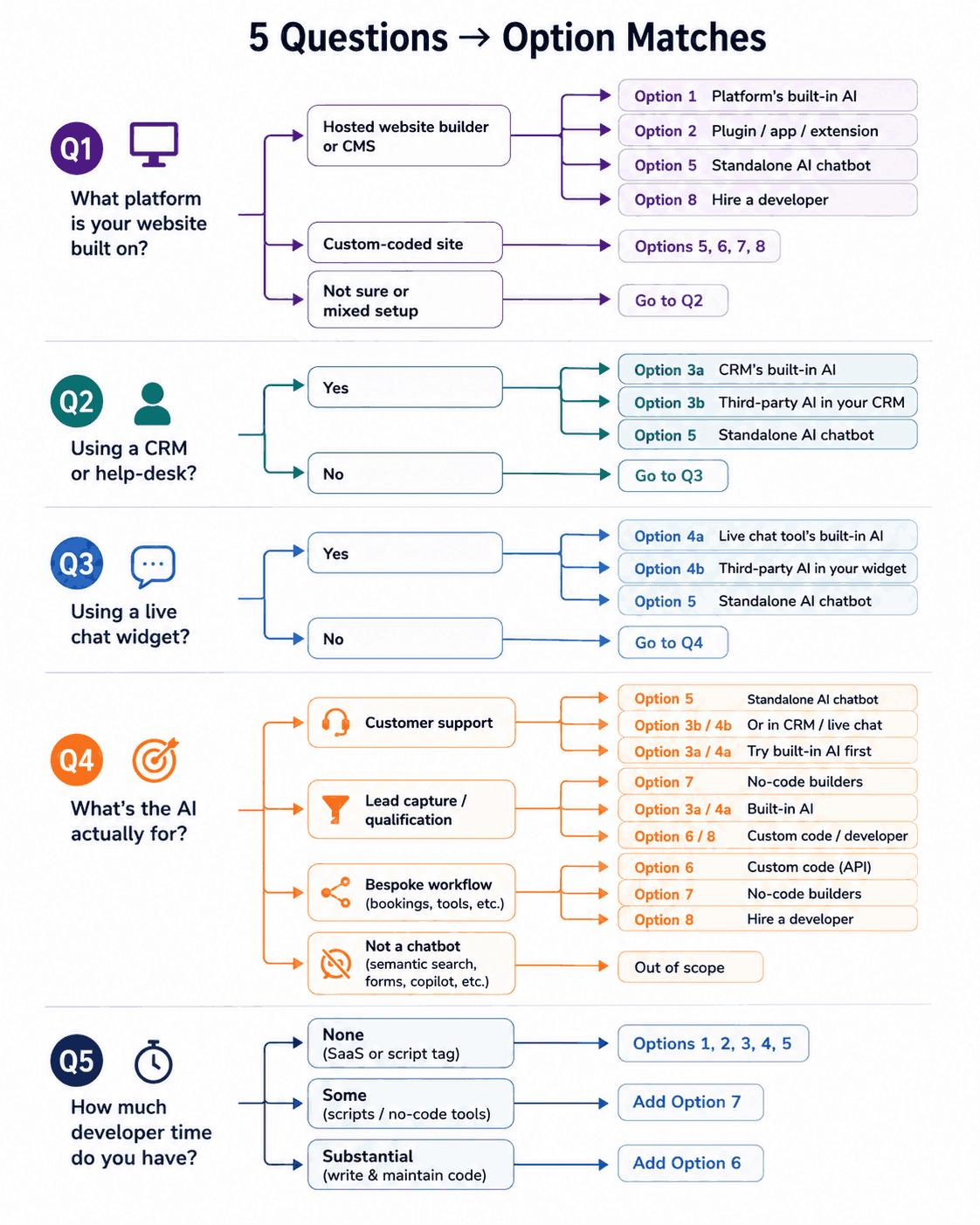
Part 1: Find Your Path in 5 Questions
Most readers will match more than one situation below. Skim through the situations that apply to you to see what options are available to you.
Q1. What platform is your website built on?
- Any hosted website builder or CMS (Wix, Squarespace, Shopify, Webflow, WordPress, etc)
- Option 1: Your platform’s built-in AI (Wix AI, Shopify Magic, Squarespace AI, WordPress.com AI tools; varies by platform; sometimes free)
- Option 2: A plugin, app, or extension from your marketplace (most extensive on WordPress, but every major platform offers some)
- Option 5: Standalone dedicated AI support chatbot (installs via copy/paste of one line of code; works on all platforms)
- Option 8: Hire a developer (overkill unless you have bespoke needs that other tools don’t cover)
- Custom-coded site
- Not sure or mixed setup → continue to Q2.
Q2. Are you already using a CRM or help-desk?
- HubSpot, Zendesk, Intercom, Salesforce, Freshdesk, or any other CRM/help-desk with AI features
- Option 3a: Your CRM’s built-in AI (HubSpot Breeze, Zendesk AI, Fin, Einstein, Freddy; easy to add, pricing can be expensive, check per-resolution costs at scale)
- Option 3b: A third-party AI that integrates into your CRM (Resolve247 for HubSpot, plus competitors; keeps your CRM workflow but swaps the AI)
- Option 5: Replace your CRM’s chat experience entirely with a standalone AI chatbot
- No CRM → continue to Q3.
Q3. Are you using a live chat widget?
- Crisp, Tidio, LiveChat, Drift, Olark, or Front
- Option 4a: Your live chat tool’s built-in AI (Magic Reply, Lyro, LiveChat AI, and similar)
- Option 4b: Plug a third-party AI provider into your existing widget (Resolve247 for Crisp/HubSpot, plus competitors; keeps your widget UX, swaps the brain)
- Option 5: Replace the widget entirely with a standalone dedicated AI chatbot
- No live chat → continue to Q4.
Q4. What’s the AI actually for?
- Customer support questions about your business (refunds, shipping, account issues, product questions)
- Option 5: Standalone dedicated AI support chatbot trained on your help docs (purpose-built, its own widget)
- Option 3b / Option 4b: Same calibre of AI inside your existing CRM or live chat widget (pick this if you want to keep the UX your team and customers are used to)
- Option 3a / Option 4a: If your CRM or live chat already includes built-in AI, it’s reasonable to try that first before evaluating the alternatives
- Lead capture or qualification flows
- Option 7: No-code builders (n8n, Voiceflow, Botpress) excel at branching qualification flows
- Option 3a / Option 4a: CRM and live chat built-in AI usually handle basic lead capture
- Option 6 / Option 8: Custom code or developer for anything truly bespoke
- Bespoke conversational workflow (bookings, internal tools, custom logic)
- Option 6: Custom code via the OpenAI or Anthropic API
- Option 7: No-code builders (n8n, Voiceflow, Botpress visual mode)
- Option 8: Hire a developer or agency
- Something that isn’t a chatbot (semantic search, AI-powered forms, embedded copilots) is out of scope for this guide. The OpenAI Community and r/webdev are good starting points.
Q5. How much developer time do you have?
- None (you want a SaaS product or a script tag)
- Some (comfortable installing scripts, configuring no-code tools)
- Add Option 7 (no-code builders) to your shortlist.
- Substantial (willing to write and maintain code)
- Add Option 6 (custom code) to your shortlist.
Part 2: 8 Ways to Add an AI Chatbot to Your Website
Each option shows what it is, who it’s best for, when to avoid it, the effort involved, and how to set it up.
Option 1: Use Your Website Platform’s Built-in AI
What it is: The AI features your website builder ships as a first-party tool. Wix AI, Squarespace AI, Shopify Magic and Sidekick, Webflow AI, and the AI tools baked into WordPress.com all fall into this bucket.
Best for: Low accuracy requirements, marketing sites, portfolios, where the chatbot’s job is light. Answering basic questions about hours or shipping, helping visitors find a page.
Avoid if: Accuracy is important, you want to add knowledge from various sources, you want advanced features, you want fine control over what it says, or you handle real support volume. These tools are designed to be quick and easy to get going to a basic level rather than be precise.
Effort: Setup is usually a single toggle. Maintenance is usually minimal. Cost can be free or included in plans you already pay for. Training data is sometimes limited to the pages within the platform, no extra knowledge capabilities. Time to deploy: minutes.
How to set it up: Each platform has its own path. Check the Wix Help Centre, the Squarespace AI docs, or Shopify Sidekick documentation for the current setup steps.
Honest verdict: Fine for small marketing pages and simple FAQs. Not trained on your detailed support content. Customisation is limited. If a customer asks something the platform’s AI doesn’t recognise, it can be unreliable in its response, which can frustrate visitors expecting real help.
The distinction between this and Option 2 matters: Option 1 is what your platform ships itself. Option 2 is the third-party specialist tools you install on top.
Option 2: Install a Plugin, App, or Marketplace Extension
What it is: Any AI tool distributed through your platform’s marketplace, including AI-specific plugins and general SaaS tools that ship a platform-specific install package.
- WordPress: browse the chatbot tag on WordPress.org. The largest plugin ecosystem by some distance, with hundreds of free and paid options.
- Shopify: search the Shopify App Store for “chatbot”. Dozens of e-commerce-specialised AI chat apps, including Shopify’s own Inbox.
- Wix: the Chat category in the Wix App Market groups chatbot and live chat apps together.
- Squarespace: no dedicated chatbot filter exists in Squarespace Extensions. Options are more limited and usually involve adding a third-party widget via code injection.
- Webflow: the Webflow Apps marketplace lists chat apps under customer engagement, but the catalogue is narrower than WordPress or Shopify.
Best for: People who want a guided install path inside their platform’s dashboard rather than fiddling with a script tag. Marketplaces typically offer free trials and one-click activation, which lowers the risk of trying something.
Avoid if: Your shortlist tool isn’t in your platform’s marketplace. That isn’t actually a problem (see the script-tag route in Option 5), but if you specifically want the marketplace install, your choice is constrained to what’s listed.
Effort: Install, activate, configure inside your platform’s dashboard. No script-tag fiddling. Costs vary from free to enterprise pricing depending on the tool.
How to set it up: Search your platform’s marketplace for “AI chatbot” or the specific tool name. Most install in one click and walk you through configuration.
Honest verdict: WordPress has the deepest free and DIY tier. Shopify has the deepest e-commerce-specialised tier. The others are narrower but improving.
Note: not every good AI chatbot is distributed via marketplaces. Many tools (Resolve247 included) install via a copy/paste script tag that works on any platform. If you find a tool you like that isn’t in your marketplace, see Option 5. The script-tag route is just as easy. If you’re on WordPress, our step-by-step guide shows how to add an AI chatbot to WordPress, with or without a plugin.
Option 3: Add AI Using Your CRM or Help-Desk
There are two genuinely different paths here. Either use your CRM’s built-in AI features (3a), or use a third-party AI tool that integrates with your CRM (3b). Most readers should consider both before deciding.
3a. Use Your CRM’s Built-in AI Features
What it is: AI features bundled into the CRM or help-desk you already pay for. HubSpot Breeze Customer Agent, Zendesk AI, Intercom Fin, Salesforce Einstein, and Freshdesk Freddy are the main ones.
Best for: Companies whose CRM tier already includes the AI features, where budget is no issue, and where the quality is good enough for the use case.
Avoid if: The built-in AI is locked behind an expensive tier upgrade you wouldn’t otherwise need, and where you are cost sensitive. HubSpot’s Breeze Customer Agent, for example, costs $0.50 per resolution, which adds up quickly. We’ve broken down the maths here: HubSpot AI Agent Pricing Explained.
Effort: Usually low. Your CRM already has your data, so training is mostly about pointing the AI at your knowledge base. Time to live: hours to days.
Honest verdict: Convenient if it comes free with what you already pay for. Painful if it forces a plan upgrade or runs hot on usage charges. Quality varies wildly between vendors and over time.
3b. Use a Third-Party AI That Integrates With Your CRM
What it is: AI tools built specifically to connect into existing CRM and help-desk platforms. They read from your CRM’s knowledge base or tickets, generate answers, and push responses back through your CRM’s chat or ticket UI. Your team’s day-to-day workflow stays the same. Just the AI brain changes.
Best for: Companies whose CRM’s built-in AI is too expensive, too limited, or not accurate enough, but who want to keep their existing CRM workflow.
Avoid if: You’re happy with built-in (don’t over-complicate things), or you’d rather replace the CRM’s chat experience entirely with a standalone tool (jump to Option 5).
Examples (HubSpot, alphabetical):
- Chatbase: General-purpose AI chatbot with a HubSpot integration.
- CustomGPT: RAG-focused tool with HubSpot integration for support content.
- Resolve247: AI inside your existing HubSpot widget and inbox. Disclosure: we make this. More at Resolve247 for HubSpot.
- SiteGPT: Trains on your help content and pushes answers into HubSpot conversations.
For a deeper comparison: Top AI Chatbots for HubSpot.
Option 4: Add AI to Your Existing Live Chat Widget
Same two-paths story as Option 3, but for live chat widgets. Use the live chat tool’s built-in AI features (4a), or plug a third-party AI provider into your existing widget (4b).
4a. Use Your Live Chat Tool’s Built-in AI
What it is: AI features bundled into your existing live chat. Crisp Magic Reply, Tidio Lyro, LiveChat AI and Drift AI are the most common.
Best for: Companies happy with their live chat tool whose built-in AI handles their support questions adequately.
Avoid if: The built-in AI hallucinates often, can’t be trained on your full knowledge base, or its pricing scales poorly with volume.
Effort: Low setup friction. Often a toggle inside your live chat dashboard. Cost is whatever your live chat vendor charges, sometimes as an add-on.
Honest verdict: Often good enough for SMB workloads. Locked into the live chat vendor’s roadmap and pricing. If the built-in AI is mediocre, you’re stuck waiting for them to improve it.
4b. Use a Third-Party AI That Plugs Into Your Live Chat
What it is: AI tools that operate inside your existing chat widget. You keep your Crisp, Tidio, or Front widget UI and conversation history. The AI provides the brain.
Best for: Companies who like their live chat widget’s UX but want better AI quality, better training on their own content, or a different pricing model.
Avoid if: You want a fully different chat UX (Option 5 is the standalone alternative), or built-in AI is already working for you.
Examples (Crisp and Front, alphabetical):
- Botpress: Visual-builder AI with Crisp and Front integrations.
- Chatbase: General-purpose AI bot that can sync into popular live chat tools.
- Resolve247: AI inside your existing Crisp or HubSpot widget. Disclosure: we make this. More at Resolve247 for Crisp and Resolve247 for HubSpot.
Option 5: Use a Standalone Dedicated AI Support Chatbot
What it is: The simplest way to add an AI chatbot to your website is a standalone tool. It’s a purpose-built AI chatbot that ingests your help docs, website, and knowledge base, then runs as its own chat widget on your site. Independent of any CRM or live chat tool you may also use.
This is the same underlying technology as Options 3b and 4b, but distributed as its own widget rather than plugging into an existing one.
Distinction from 3b and 4b: Options 3b and 4b keep your existing widget UI and slot AI inside it. Option 5 is its own widget. Pick this if you don’t have an existing CRM or live chat widget you’re committed to, or if you want a chat experience purpose-built for AI rather than retrofitted onto live-chat plumbing.
Best for: Anyone whose actual goal is “answer customer questions correctly without hiring more support staff”, and who doesn’t need to keep an existing widget UX.
Avoid if: You’re already paying for a live chat tool whose UX your team is happy with (consider 4b instead), or your CRM is already the centre of gravity for customer conversations (consider 3b instead).
Effort: Setup is usually a copy/paste script tag plus pointing the AI at your website or help centre. Most tools train themselves on your content in minutes. Cost ranges from $19 to several hundred dollars a month for SMB plans.
Installation: Most install via a copy/paste script tag that works on any platform: Wix, Squarespace, Shopify, Webflow, WordPress, and custom-coded sites.
Honest comparison of standalone options (alphabetical)
- Botpress: Strong visual builder for branching flows. More effort to set up than the pure-RAG tools, but more flexible if your support workflow has logic in it. Free tier available; paid plans scale with messages.
- Chatbase: Simple to set up. Train on your website or upload documents. Per-message pricing model. Good for getting something live quickly. Less depth on support-specific features.
- CustomGPT: Focuses on retrieval-augmented generation (RAG) quality. Strong anti-hallucination behaviour. Pricing is per-document and per-query, which can be hard to predict.
- Pickaxe: No-code AI tool builder, broader than just chatbots. Useful if you want to ship several different AI tools on your site (a chatbot, a recommender, a generator), not just one.
- Resolve247: AI support chatbot with anti-hallucination guarantee. Trains on your website, help site and files. Integrates with HubSpot and Crisp if you later want the AI inside your CRM or live chat too, and can draft replies directly in your Front or Help Scout inbox. Easy customisation options to adjust the AI to suit your needs. Disclosure: we make this. See the Resolve247 AIChatbot for websites. For a deeper buyer’s framework: How to Choose an AI Customer Support Chatbot.
- SiteGPT: Trains on your website out of the box. Strong at handling marketing-site questions. Pricing scales with messages and bots.
Standalone Dedicated AI Support Chatbot is the right pick if the job is customer support and you want a dedicated chat experience. If you want the same AI quality but inside your existing CRM or live chat widget, Options 3b and 4b are the better starting points.
How to actually install it (in 3 steps)
Whichever tool you pick to add an AI chatbot to your website, the install pattern is the same:
- Train the AI on your content: point it at your website URL/help docs or upload your knowledge files. Most tools do this automatically in minutes.
- Copy the embed snippet: your tool will give you a one-line
<script>tag. - Paste it on your site: drop it just before the closing
</body>tag on every page, or use your platform’s “header/footer scripts” setting (most CMS platforms have one).
That’s it. For a full worked example, see How to Add Resolve247 to Your Website.
Option 6: Build It Yourself With Code
What it is: The actual code path. An OpenAI or Anthropic API key, a backend endpoint that calls the API, and a frontend chat UI on your site.
Best for: Companies with engineering capacity and a specific bespoke workflow that off-the-shelf tools can’t handle. Internal tools, complex bookings, conversational interfaces tied to proprietary systems.
Avoid if: Your goal is customer support that answers questions from a help centre. A SaaS product (Options 3b, 4b, or 5) will be cheaper, faster, and better than what you can build in less than a few months of focused work.
Effort:
- Upfront dev time: 1 to 4 weeks for a basic working version. Considerably more for production-grade with auth, rate limiting, RAG, evaluation, and monitoring.
- Ongoing maintenance: continuous. Model updates, prompt drift, security patches, and edge-case handling.
- Accuracy: depends entirely on your prompt engineering and whether you implement retrieval-augmented generation properly.
- Cost at scale: API costs add up. A single complex conversation can cost several cents. At volume, that’s meaningful, and it can spike unexpectedly if usage jumps.
Minimal example (Node.js): A typical setup has an Express endpoint that takes a user message, retrieves relevant content from your knowledge base (vector search), passes it to the OpenAI API with a system prompt, and returns the response to your frontend. See the OpenAI API docs for current syntax and pricing.
Honest verdict: Powerful and totally customisable. Also a maintenance burden that has killed more side-projects than launch-week traffic spikes. Build only if the bespoke value justifies the lifetime cost.
Option 7: Build It Yourself With No-Code Tools
What it is: Visual-builder tools that let you wire together AI, branching logic, integrations, and a chat UI without writing code. The main players are n8n, Zapier (for orchestration), Voiceflow, Make.com, and Botpress in its visual-builder mode.
Best for: Lead qualification flows, multi-step conversations with branching logic, anything that needs to call out to other systems (Calendly, your CRM, Stripe) as part of the conversation.
Avoid if: Your need is “answer support questions from my help docs”. A purpose-built RAG tool (Option 5) will outperform a no-code builder on that specific job, with less effort.
Effort: Less than code but still significant. Building the first version is faster than developers expect. Maintaining it as edge cases emerge is slower than non-developers expect. Plan for ongoing fiddling.
Setup: Pick a tool, build the flow, embed via script tag. Most tools have templates that get you 60% of the way for common use cases.
Honest verdict: The right answer when your workflow has actual logic in it. The wrong answer when it doesn’t (you’re just paying for complexity you don’t need).
Option 8: Hire a Developer or Agency
What it is: The honest fallback. Pay a freelancer or agency to build, integrate, and maintain an AI chatbot for you.
Best for: Businesses with budget but no in-house engineering, with a bespoke need that off-the-shelf tools genuinely can’t cover. Also fine if you’ve tried other options and the friction (or limitations) made it not worth the saved cost.
Brief them on: the exact business outcome (deflect tickets, capture leads, automate booking, and so on), where the content lives, your existing tool stack, your data and privacy requirements, and what success looks like in numbers.
Red flags: anyone who promises a fixed price without a discovery phase, anyone who recommends building from scratch when an off-the-shelf tool would do the job, and anyone who can’t show you a working example they’ve built before.
Cost: Wide range. A simple chatbot built on top of an existing AI platform can cost $2,000 to $8,000. A bespoke RAG implementation with custom integrations is usually $15,000 and up. Ongoing maintenance is typically 10 to 20% of the build cost per year.
How to add an AI Chatbot to your Website: Side-by-Side comparison
The table below summarises the eight ways to add an AI chatbot to a website, with setup effort, cost ranges, and best-fit use case for each.
| Option | Setup effort | Maintenance | Cost (entry → scale) |
Time to live | Best for |
|---|---|---|---|---|---|
| 1. Platform built-in AI | Very low | None | Free / included | Minutes | Marketing sites, basic FAQs |
| 2. Marketplace plugin | Low | Low | Free → ~$50/mo | Hours | Quick install on your CMS |
| 3a. CRM built-in AI | Low | Low | Often expensive at scale | Hours | Already on Pro tier with budget |
| 3b. Third-party AI in CRM | Low | Low | $35 → $235/mo (Resolve247 range) | Hours | Keep CRM workflow, swap brain |
| 4a. Live chat built-in AI | Very low | Low | Vendor pricing | Minutes | Happy with current live chat |
| 4b. Third-party AI in live chat | Low | Low | $35 → $235/mo | Hours | Keep widget UX, better AI |
| 5. Standalone AI chatbot | Low | Low | $19 → $500/mo | Hours | Dedicated support widget |
| 6. Custom code | Very high | Very high | API + dev cost | 1 to 4+ weeks | Bespoke workflow with engineering |
| 7. No-code builder | High | High | $0 → $200/mo + your time | Days to weeks | Branching flows, lead capture |
| 8. Developer / agency | Low | Low | $2,000 → $15,000+ build | Weeks | Bespoke needs, no in-house dev |
How to Decide: The 30-Second Version
If you’re choosing how to add an AI chatbot to your website and want the short answer, here it is:
- Want it live today and your use case is light? Use your platform’s built-in AI (Option 1) or a marketplace plugin (Option 2).
- Already on a CRM or live chat? Try the built-in AI first (3a or 4a). If pricing or quality disappoints, swap the brain via 3b or 4b without changing your team’s workflow.
- Customer support is the actual goal and you don’t need to keep an existing widget? A standalone AI support chatbot (Option 5) is usually the best fit.
- You have a genuinely bespoke conversation (booking, qualification, internal tool)? A no-code builder (Option 7) or custom code (Option 6).
- Budget but no developer? Hire one (Option 8).
If you only have 5 seconds: skip to Option 5 for the most common starting point.
If you’re still unsure whether you need a chatbot at all, this might help: Chatbot vs Live Chat: Pros, Cons and Which Your Support Needs
Frequently Asked Questions
Do I need to know how to code to add AI to my website?
No. Options 1 through 5 all install without writing code. The simplest path is your website platform’s built-in AI (Option 1) or a marketplace plugin (Option 2), which involve a toggle or a one-click install. A standalone AI chatbot (Option 5) installs via a copy/paste script tag. Custom code (Option 6) is only necessary for bespoke workflows.
How do I add a chatbot to my website using HTML?
Most AI chatbot tools give you a one-line <script> tag to paste into your site’s HTML. For Resolve247, for example, it looks like this:
<!-- Start chatbot Snippet -->
<script type="text/javascript" src="https://app.resolve247.ai/embed_widget/[your-unique-key]"></script>
<!-- End chatbot Snippet -->
Paste the snippet just before the closing </body> tag on every page, or use your platform’s “header/footer scripts” setting (most CMS platforms have one). The widget then loads asynchronously on every page. For a full walkthrough with screenshots, see How to Add Resolve247 to Your Website.
How much does it cost to add an AI chatbot to a website?
Anywhere from free to several thousand dollars a month. Built-in AI from your website platform is often included in plans you already pay for. SaaS AI chatbots for SMBs typically start at $19 to $35 per month. CRM-bundled AI like HubSpot Breeze can run to thousands per month at scale due to per-resolution pricing. Custom-built solutions cost $2,000 to $15,000+ upfront plus ongoing maintenance.
What’s the difference between an AI chatbot trained on my content and a generic AI assistant?
A trained chatbot uses your help docs, website, and knowledge base to answer questions. It cites your information and stays on-topic. A generic assistant (raw ChatGPT, for instance) uses its model’s general training and will happily answer questions it has no business answering, including making up details about your business. For customer support, a trained chatbot is the only safe choice. For more on the trust risks of generic AI on a customer-facing surface, see our ChatGPT embed guide.
Will an AI chatbot replace my support team?
No, and you shouldn’t want it to. The realistic outcome is the AI handles the repetitive questions (refunds, shipping, account access, basic product queries) while your team handles the complex ones. Most businesses report deflecting 60 to 85% of routine tickets, freeing the team to spend time where it matters. (See Zendesk’s CX Trends report for industry deflection benchmarks.) We dig into the maths in our guide to how AI chatbots reduce customer support costs.
How long does it take to add AI to a website?
Minutes to weeks, depending on the option. Built-in AI: minutes. Marketplace plugin: minutes to an hour. Standalone AI chatbot trained on your help centre: usually a few hours to get production-ready. CRM or live chat integration: hours to a day. Custom code: weeks. The training step (pointing the AI at your content) is usually the longest part, and it’s often automatic.
Will adding an AI chatbot affect my website’s page speed?
A well-built chatbot widget loads asynchronously and should add 30ms or less to perceived page-load time. Most reputable tools defer loading until the user interacts, so the impact on Core Web Vitals is negligible. If you notice a real slowdown, check whether the widget is loading synchronously and switch to async loading.
Can I use the same AI chatbot across my website, CRM, and live chat?
Yes, with the right tool. Resolve247, for example, offers a standalone widget for your website (AIChatbot) and integrations into HubSpot, Crisp, Front, and Help Scout, all using the same trained AI. That means one knowledge base, one set of behaviour rules, and consistent answers wherever the conversation happens. Not every tool offers this, so check before assuming it.
What if I just want to use ChatGPT?
ChatGPT itself isn’t really built to be a customer-facing chatbot on your website. There are four practical ways to embed it (Custom GPTs, the OpenAI Assistants API, third-party widgets, and full custom builds), each with different trade-offs around customer-facing risk. We cover all four in detail, including the 2024 Air Canada ruling that held a company liable for a chatbot’s false promises: How to Embed ChatGPT in Your Website.
How do I know if my website needs an AI chatbot at all?
A simple test: if you (or your team) answer the same question more than three times a week, an AI chatbot will pay for itself quickly. If your support volume is low and your visitors mostly find what they need, you may not need one. Our guide to chatbot vs live chat walks through the decision.
Is it better to build my own chatbot or buy a SaaS tool?
Buy, unless you have a bespoke workflow that SaaS tools genuinely can’t handle. Building is rarely cheaper once you factor in dev time, prompt engineering, evaluation, monitoring, and maintenance. The honest exception: if you’re a developer-first company with engineering capacity to spare and a specific use case that needs custom logic, building gives you total control. For customer support specifically, the off-the-shelf RAG tools (Option 5) have a multi-year head start that’s very hard to close.
Final Thoughts
There isn’t one right way to add an AI chatbot to a website. There’s a right way for your situation, and the situation has at least five variables: platform, CRM, live chat, use case, and developer time.
The decision tree at the top of this article exists so you don’t have to read all eight options to find yours. If you matched more than one option (most people do), compare them on the dimensions that actually matter for your case: who’s it trained on, where does it live, how does pricing scale, and what’s the maintenance burden.
If your goal is customer support specifically, that’s the use case we built Resolve247 for. We’re one of several good options in that category. Compare us to the others on Option 5 honestly, and try the 30-day free trial, no card required if you want a feel for the actual product.
Whichever option you choose, the rule that matters most is the same: train it on your real content, watch what it says for the first few weeks, and treat the AI as a colleague who’s learning the ropes rather than a finished feature.