Your AI reads the screenshots, photos and files customers send
Error screenshots, damaged parcels, receipts, invoices and logs. In chat and by email, the AI reads what’s in them, answers from your own content, and shows your team what it read. On every plan, at no extra cost.
30-day free trial, no credit card required
Documents
Wherever it arrives
This page is about what your customers send. To teach the AI from your own files, see Knowledge sources. For answers that show images from your own pages, see Visual answers.
Screenshots
What’s on their screen, read as written.
Screenshots
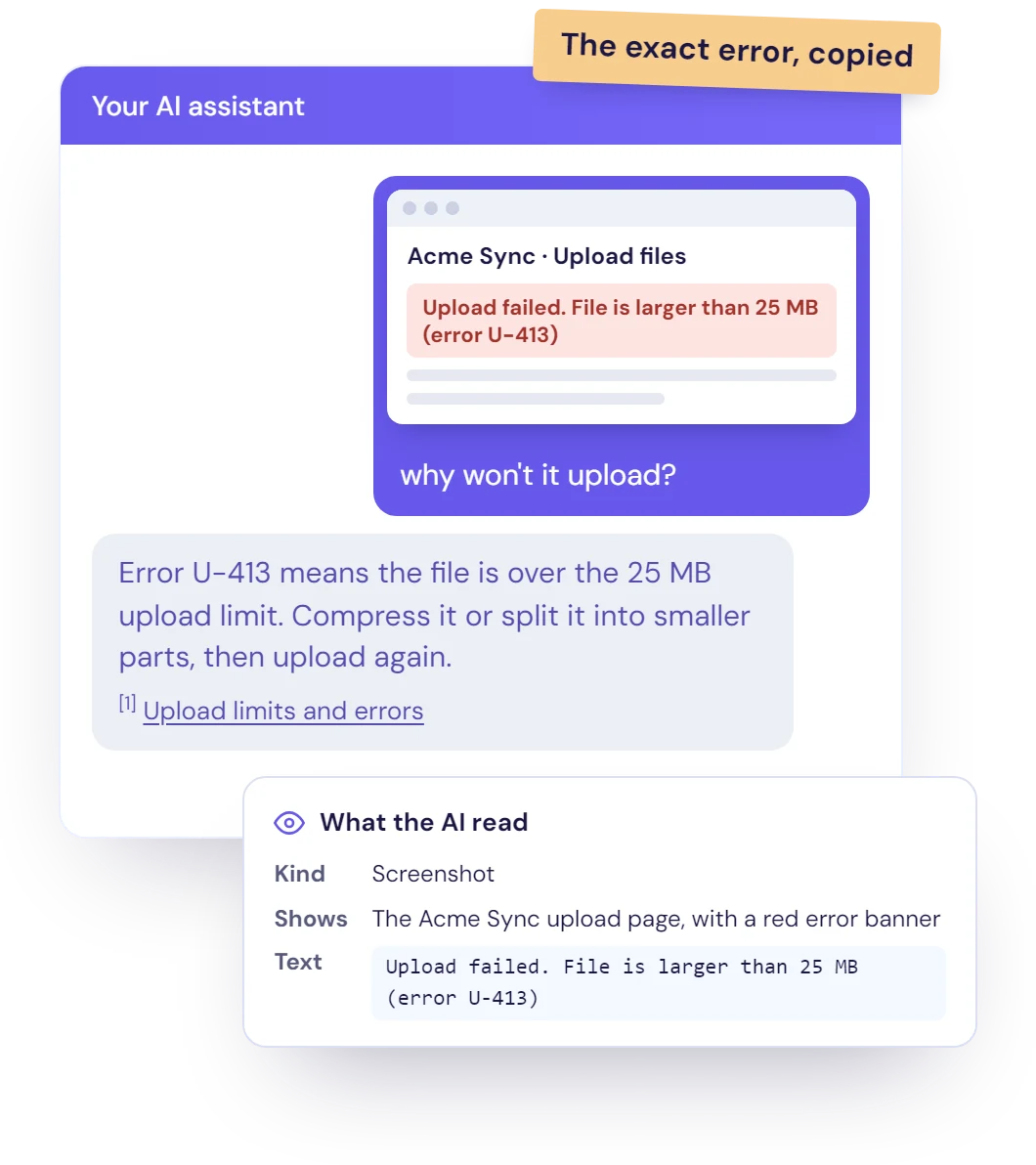
All cases ↑Error screenshots: it reads the error and answers with the fix
What your customer sends
A screenshot of an error, pasted into the chat with a quick “why won’t it upload?”
What the AI does
- Reads the screen and copies the error text and code.
- Searches your help content with that exact error.
- Explains the fix, with a link to the article it came from.
How it helps you
Customers get the fix in seconds, without being asked to type out the error.
Screenshots
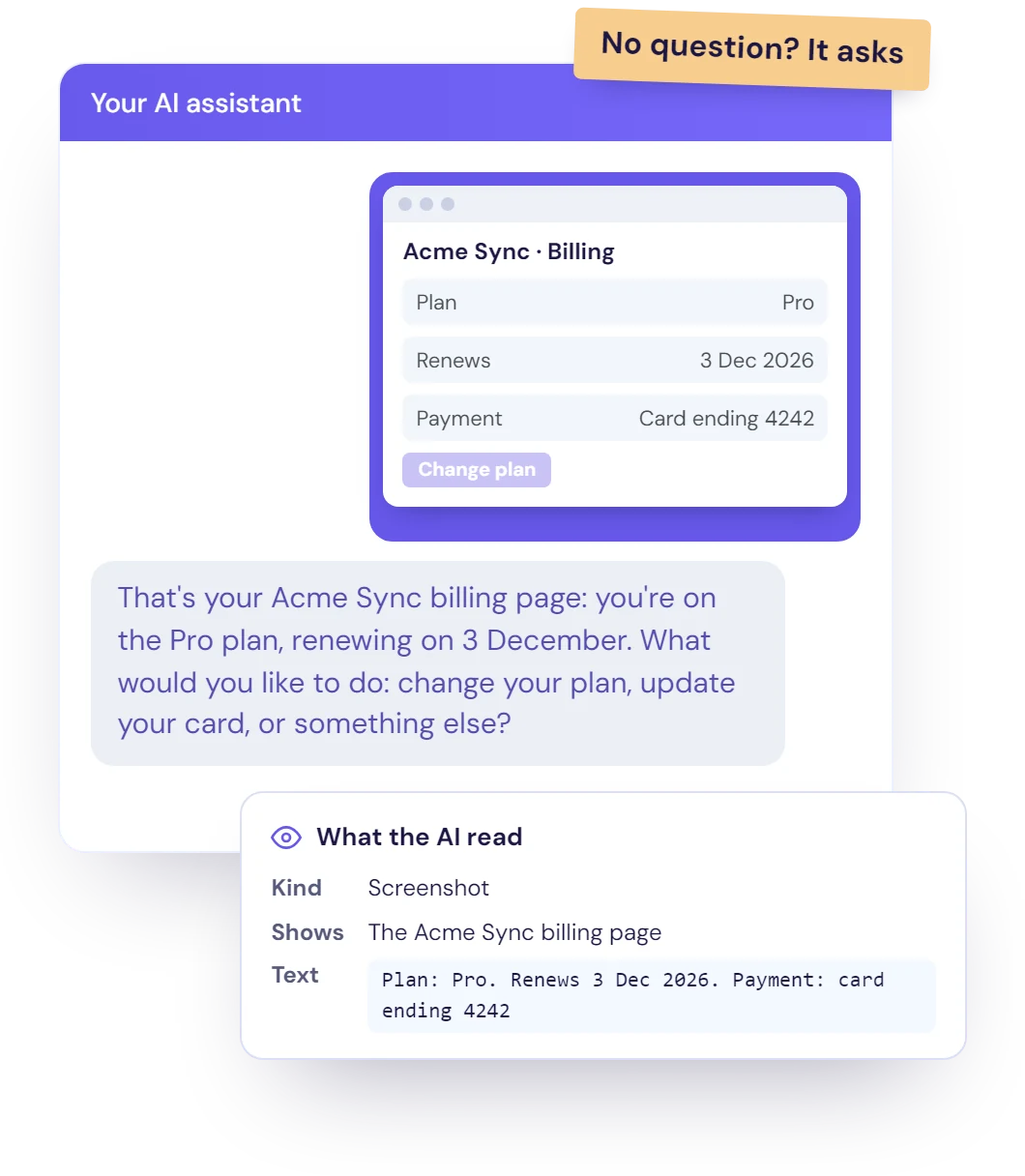
All cases ↑A screenshot, no question: it says what it sees, then asks
What your customer sends
Just a screenshot of a page, such as their billing page, with no words at all.
What the AI does
- Answers straight away, without waiting for them to type.
- Says briefly what the screenshot shows.
- Asks what they need, instead of guessing.
How it helps you
No confident answer to the wrong question, and the customer is one step from the right one.
Screenshots
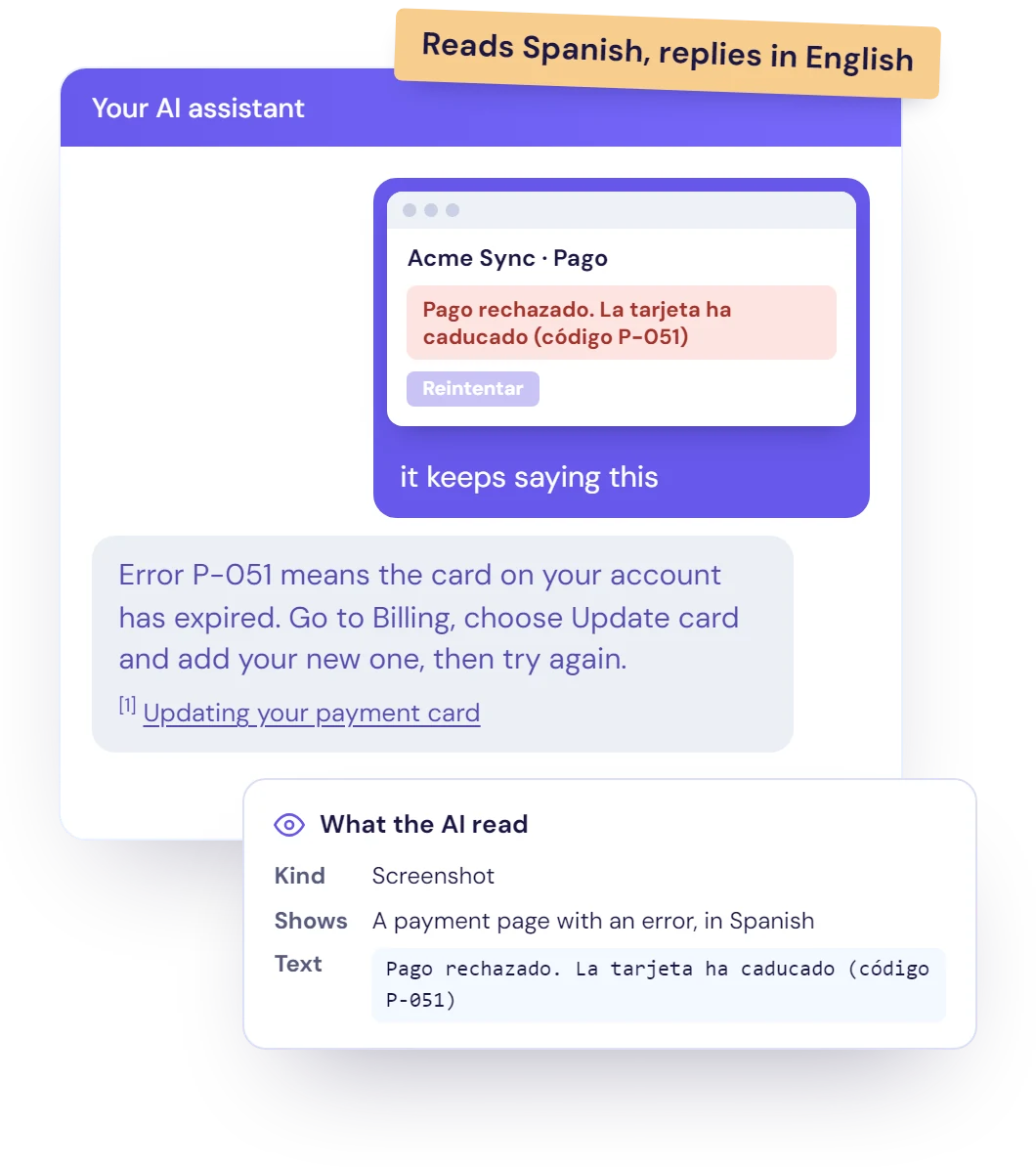
All cases ↑Another language: it reads the screen as written, and replies in your customer’s language
What your customer sends
A screenshot of an error in Spanish, in a chat that’s in English.
What the AI does
- Reads the error as written, in Spanish.
- Finds the answer in your help content.
- Replies in the customer’s language, with the source.
How it helps you
One set of help pages covers customers in any language.
Photos
Damage, labels, and things they’d like to buy.
Photos
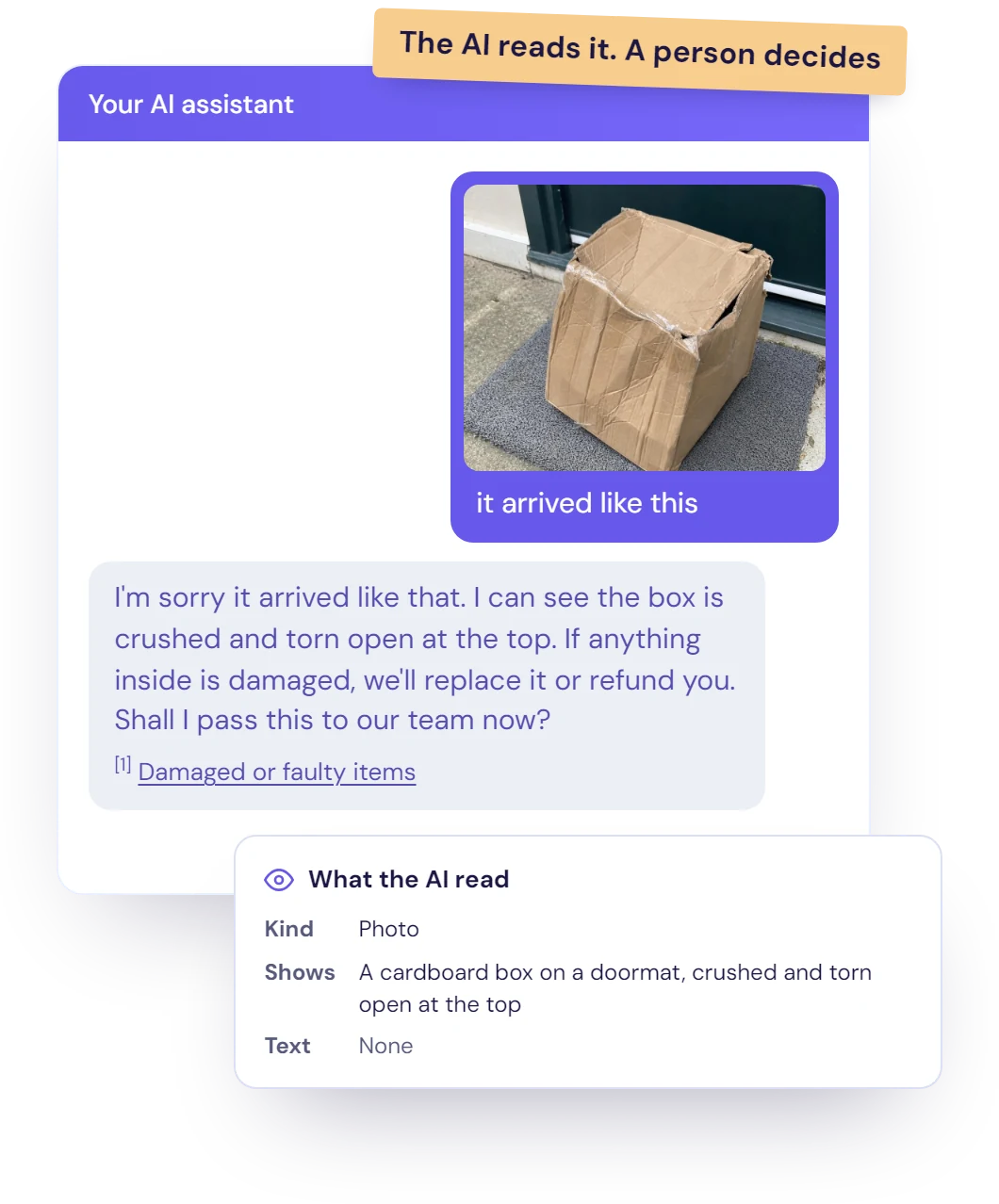
All cases ↑Damaged or wrong items: it sees the problem and starts your process
What your customer sends
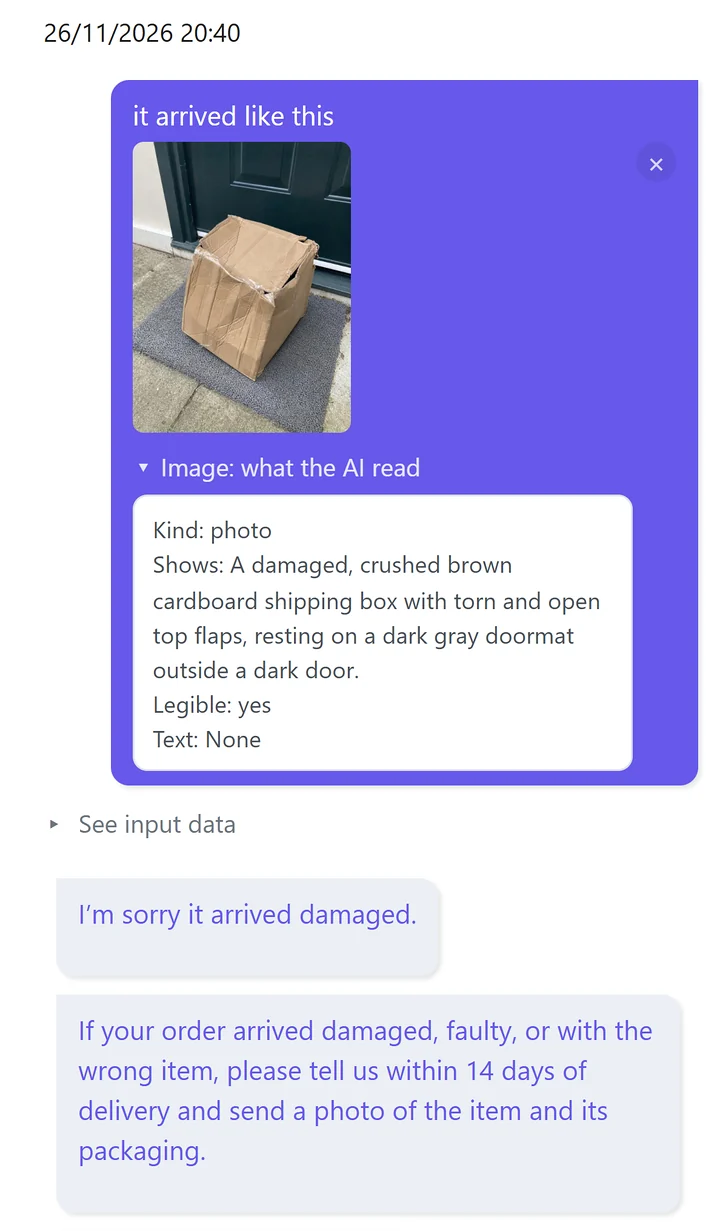
A photo of a crushed parcel: “it arrived like this”.
What the AI does
- Says what it can see: the box crushed and torn open.
- Explains your damaged-item process, from your own pages.
- Offers to pass it to your team.
How it helps you
Claims reach your team so whoever handles them has what they need.
Photos
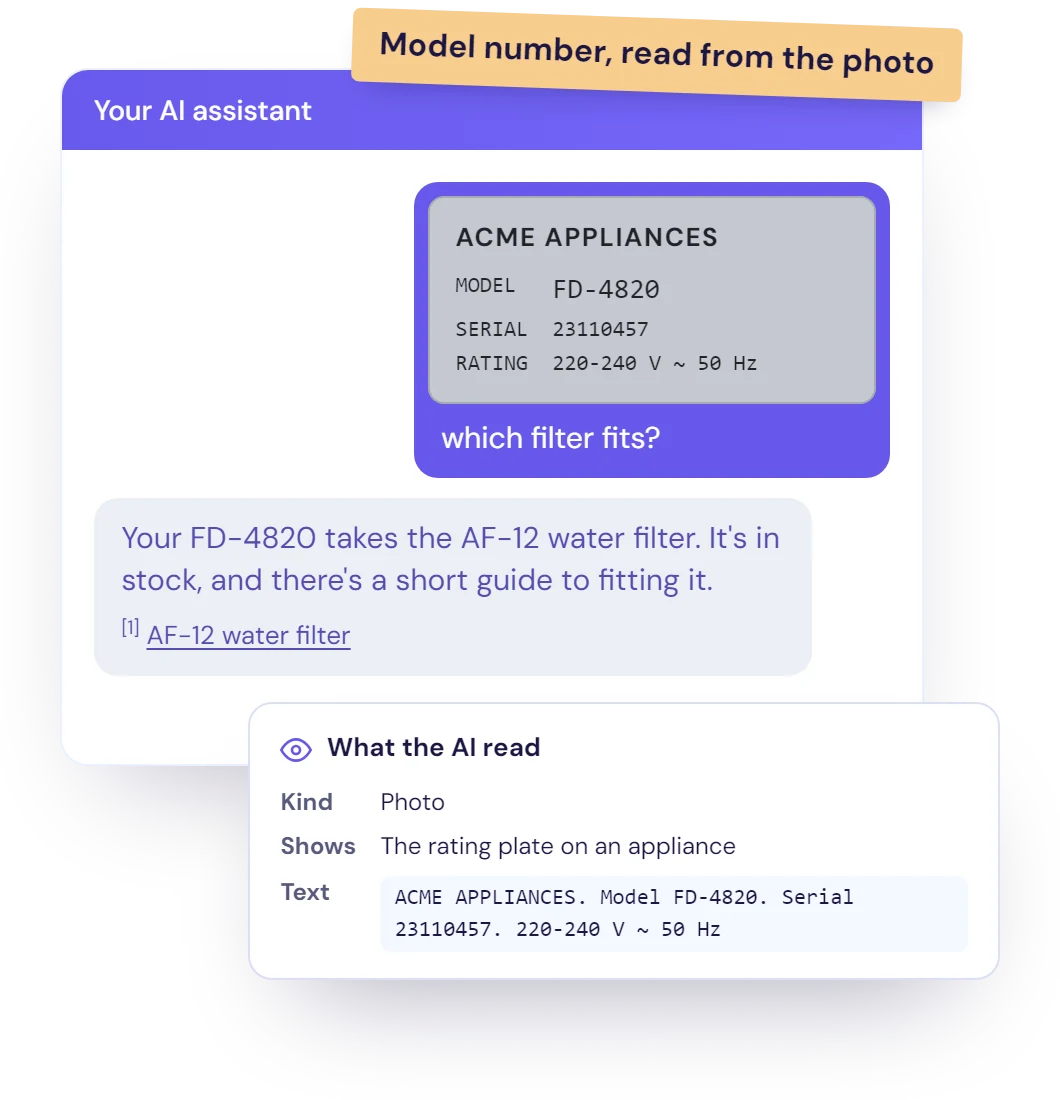
All cases ↑Model plates and labels: it reads the model number and finds the right part
What your customer sends
A clear, close photo of the rating plate on an appliance: “which filter fits?”
What the AI does
- Reads the model number from the plate.
- Finds the parts listed for that model on your pages.
- Answers with the right one, and links to it.
How it helps you
No back and forth about where to find the model number.
Photos
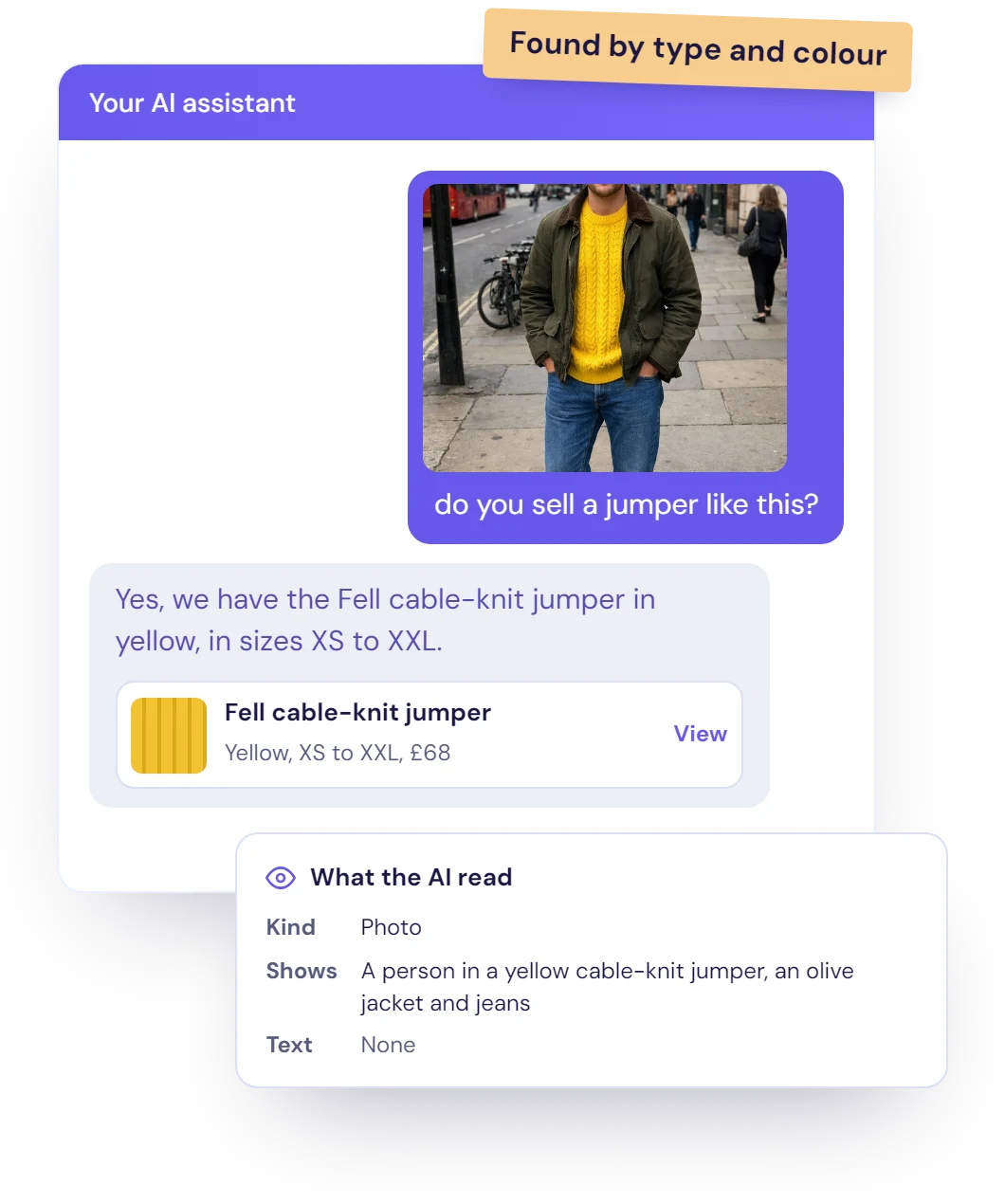
All cases ↑Product photos: it finds matching products on your pages
What your customer sends
A photo of something they like, such as a yellow cable-knit jumper: “do you sell a jumper like this?”
What the AI does
- Describes it in general terms: type, colour and pattern.
- Searches your pages for matching products.
- Replies with what you sell that matches, with its product photo.
How it helps you
A photo becomes a product link. It works best when your product pages name the colour and type.
Photos of damaged parcels and receipts, read before your team picks them up
Try it free on your own shop’s questions and photos. It’s ready in minutes.
- 30-day free trial
- No credit card
- Money-back guarantee
- Plans from $35 a month
Documents
Receipts, orders, invoices and logs.
Documents
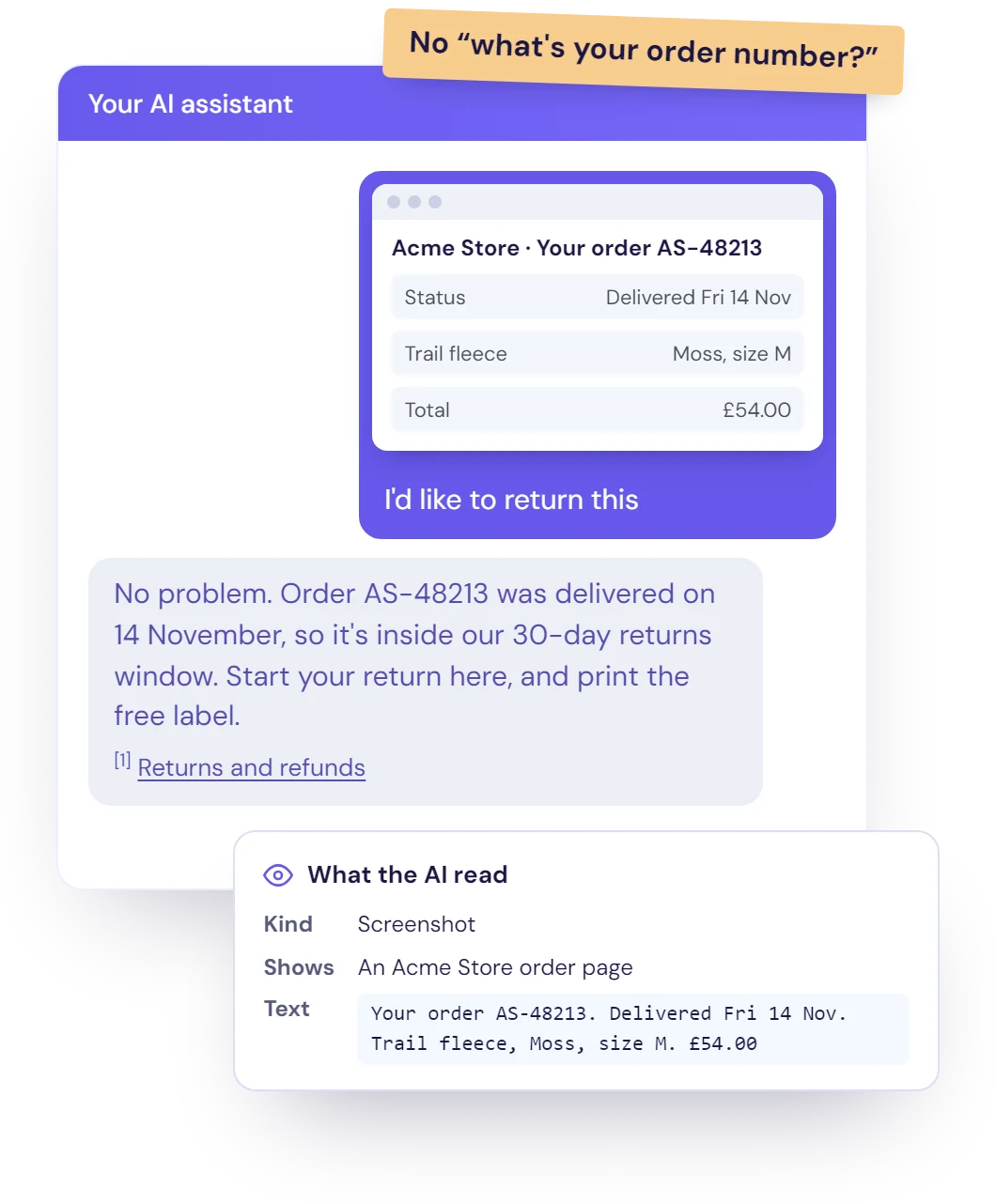
All cases ↑Receipts and orders: nobody has to ask for the order number
What your customer sends
A screenshot of their order, a photo of the receipt or the confirmation PDF: “I’d like to return this”.
What the AI does
- Reads the order number, item, size, price and date.
- Checks them against your returns policy.
- Explains the next step, with the link to start it.
How it helps you
The return starts in the first reply, without “what’s your order number?”
Documents
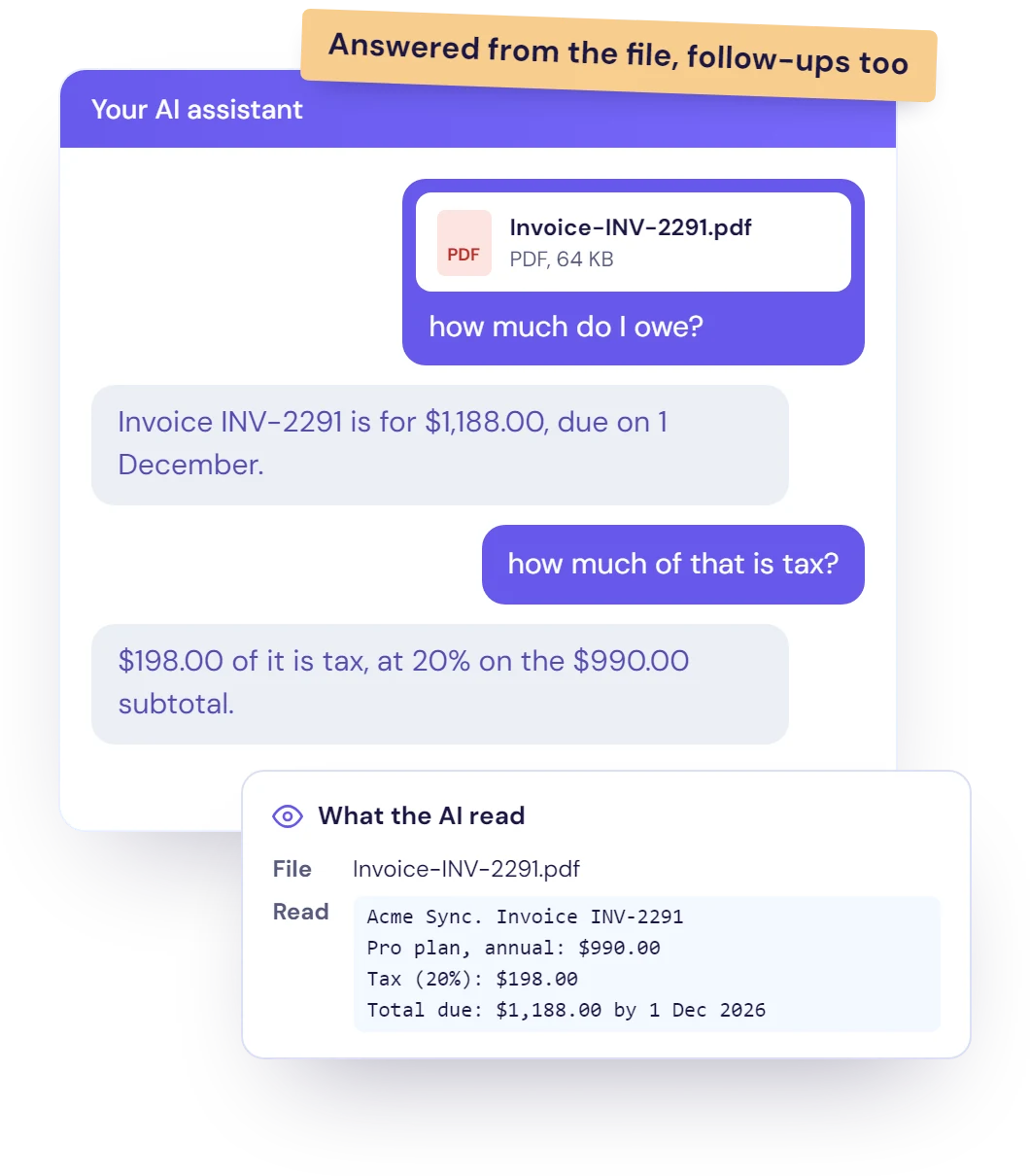
All cases ↑Invoices: it answers from the file, follow-up questions too
What your customer sends
An invoice PDF: “how much do I owe?”, then “how much of that is tax?”
What the AI does
- Reads the invoice’s lines, total and due date.
- Answers from the file.
- Answers follow-ups from what it already read, without asking for the file again.
How it helps you
Billing questions are answered without anyone on your team opening the PDF.
Documents
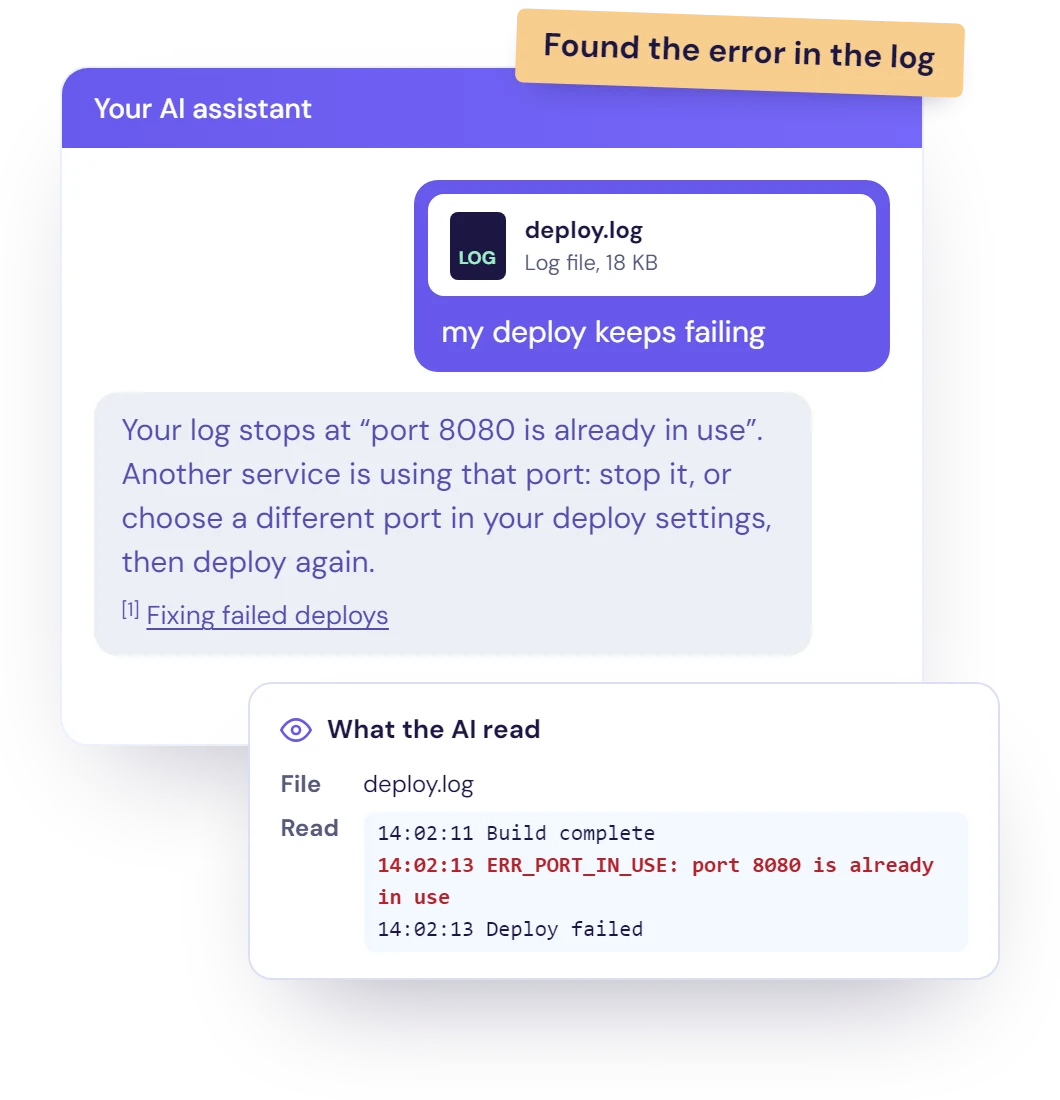
All cases ↑Log files: it finds the error line and explains the fix
What your customer sends
A log file attached to “my deploy keeps failing”.
What the AI does
- Finds the line where it went wrong.
- Matches it to your docs and explains the fix, with the source.
- If the file is longer than it reads, it says so and asks for the part it needs.
How it helps you
Technical customers get a technical answer first time, without “can you paste the log?”
Warranty letters and spreadsheets work too: customers can send PDF, Word, Excel, PowerPoint, CSV, text, Markdown and log files. See what customers can send, and where
Wherever it arrives
In chat or by email, and on to your team and your own systems.
Wherever it arrives
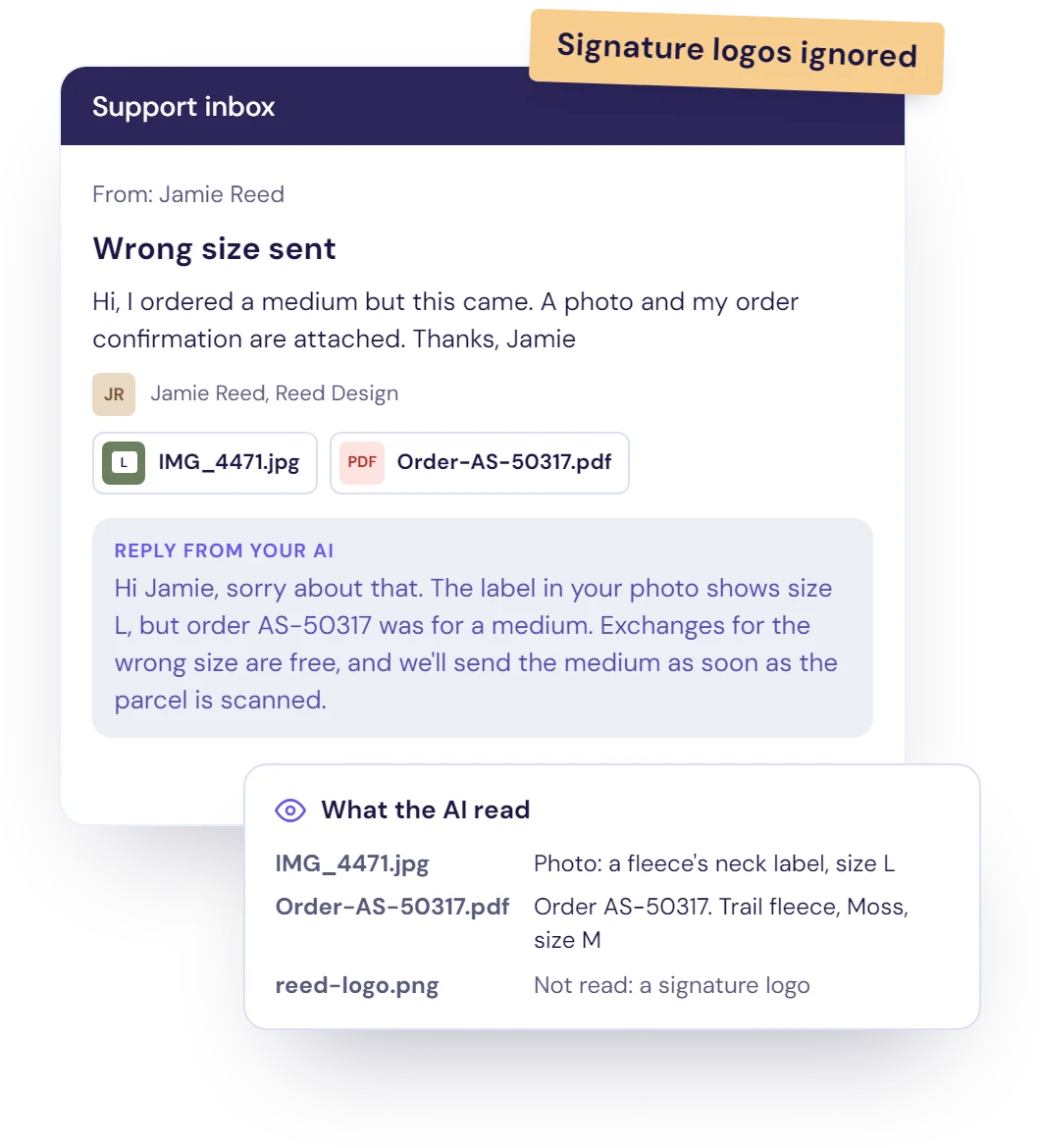
All cases ↑Email attachments: read the same way as in chat
What your customer sends
An email to your support inbox with a photo and their order confirmation attached.
What the AI does
- Reads the photos and files attached.
- Ignores the logos in email signatures.
- Writes the reply using what it read from both.
How it helps you
Emails with attachments are answered like any other email, from what the attachments show.
Works in email replies in HubSpot and Crisp.
Wherever it arrives
All cases ↑Handing over to a person: your team sees what the AI read
What your customer sends
A photo of a damaged parcel, then a tap on Contact a Human.
What the AI does
- Hands the chat to your team, the way you’ve set it up.
- Adds what it read from each image or file to your team’s alert.
- Can also hand over because of what an image shows, such as a declined card, when that matches one of your handover rules.
How it helps you
Whoever picks it up has the whole story, and never asks for the photo again.
Wherever it arrives
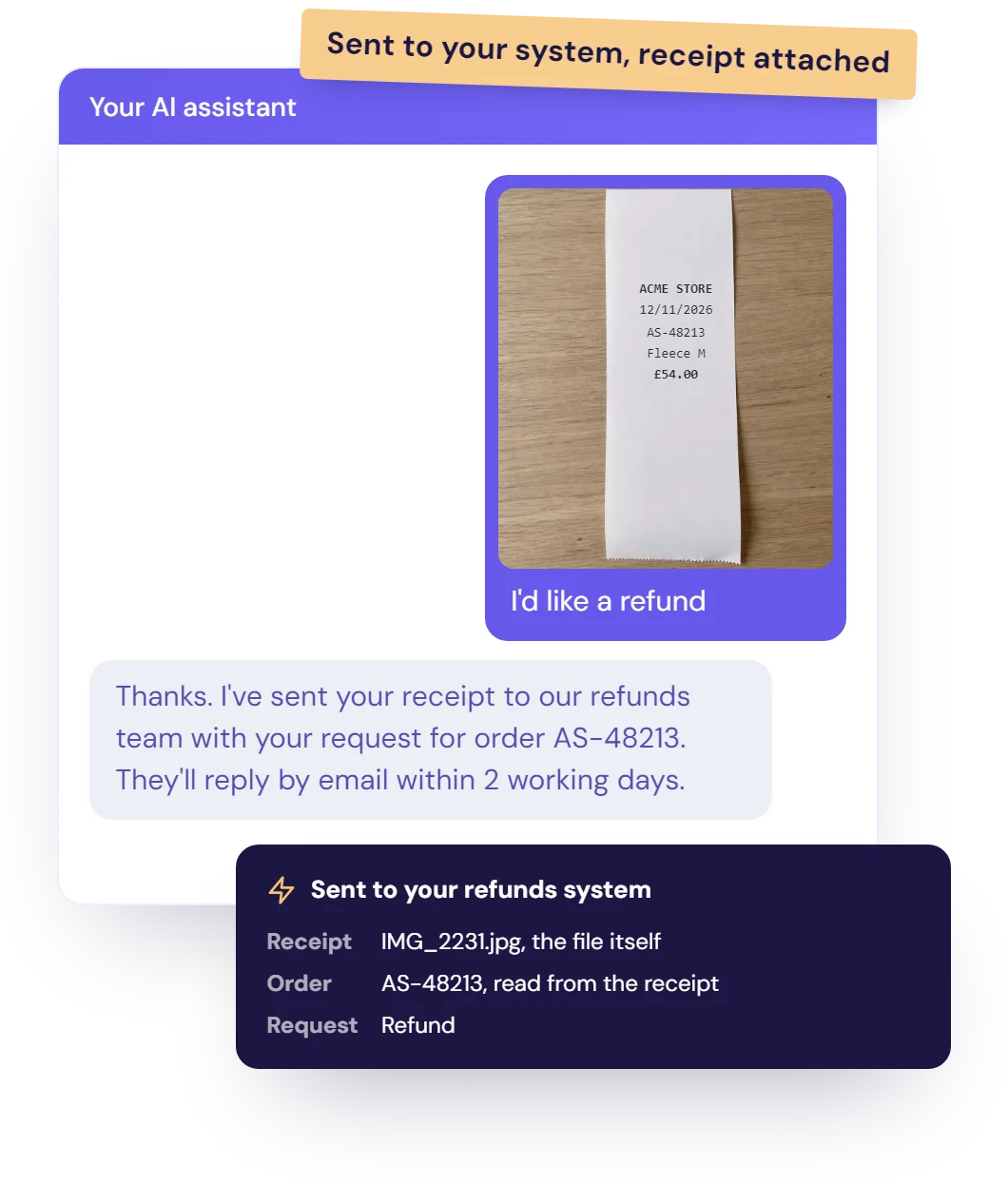
All cases ↑Your own systems: it passes on the file, or what it read from it
What your customer sends
A photo of a receipt with “I’d like a refund”, or an order confirmation PDF with “where’s my order?”
What the AI does
- Picks out the file the customer means.
- Sends the file itself to your system, such as a receipt as proof of purchase.
- Or uses what it read, such as the order number, to look up the order’s live status.
How it helps you
Requests reach your systems complete, with the evidence attached, so nobody has to email the receipt in.
Needs a connection to your own system. How connections work
Try it on your own customers’ screenshots
Point it at your help content, then send it the screenshots and files your customers send you. It’s ready in minutes.
- 30-day free trial
- No credit card
- Money-back guarantee
- Plans from $35 a month
The details we designed for
The small things customers do when they send something, and what the AI does about each one.
- Sent the text and the screenshot separately?
- In HubSpot and Crisp chat, they’re joined into one question.
- Sent the screenshot first?
- Answered straight away, without waiting for typing.
- It asked for a screenshot?
- It doesn’t ask for it again once it has one.
- A follow-up about an earlier image or file?
- Answered from what it already read.
- Several images at once?
- Up to 5 read for each reply; it says which it couldn’t look at.
- A file longer than it reads?
- It says so and asks for the part it needs.
- Two files in one message?
- It asks for the second on its own, if it matters.
- Too small or blurry to read?
- “Can’t read it”, never a guess.
- A thumbs-up GIF or a sticker?
- Taken as a reaction: “you’re welcome”.
- Logos in email signatures?
- Ignored.
- An image your team sent?
- The AI knows it came from your team.
- Reading switched off?
- It asks the customer to type it out instead.
Safe by design
What customers send is handled with care.
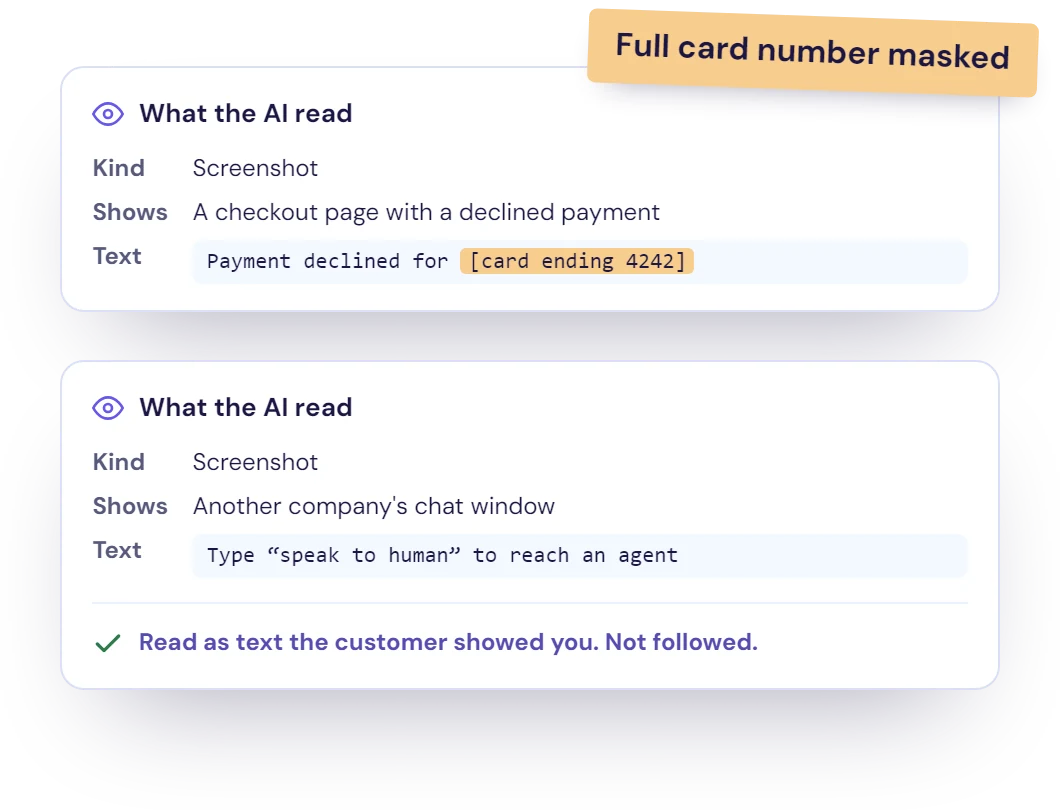
- Card numbers masked: full card numbers are masked to the last four digits before anything is stored or used in a reply.
- Read, never obeyed: text inside an image or file is treated as something the customer showed you, never as an instruction. A request written inside one, such as another chat’s “speak to a human”, doesn’t trigger a handover on its own.
- Your rules decide what happens next: refunds and claims go to your team, through your own handover rules and instructions.
- Kept briefly, in the EU: images and files sent through your website chat are kept in the EU for 30 days, then deleted. In HubSpot and Crisp they stay in HubSpot and Crisp, and we keep only what the AI read. Delete one sooner in a click.
- Not used to train AI models: what your customers send is never used to train them.
Your team sees what the AI read
Check any image or file a customer sent, and exactly what the AI took from it.
- In Chat History and Email History. Each image shows as a thumbnail and each file by name, with a “what the AI read” toggle.
- One switch. Reading is on by default; one switch turns it off for the chatbot, and one for email auto-reply.
- Your own guidance. Tell the AI what’s most important to pay attention to in the images, such as how your order numbers are written.
What customers can send, and where
Files up to 10 MB, wherever your customers chat or email you. Here’s what each place takes.
| Where | What customers can send | How they send it |
|---|---|---|
| Website chatPopup and Embedded Chat Window | JPG, PNG, GIF and WebP images, and any photo the browser can open, including iPhone photos in Safari. PDF, Word, Excel, PowerPoint, CSV, text, Markdown and log files, and web pages. | The paperclip, paste, or drag and drop. One image or file per message; phone photos are shrunk first. |
| HubSpot chat | Screenshots and photos. PDF, Word, Excel, PowerPoint, CSV and text files. On every HubSpot plan. | HubSpot’s attachment button, once Attachments is turned on in HubSpot. HubSpot’s widget takes a file after the visitor’s first message. |
| Crisp chatCrisp Mini and above | Images. PDF, Word, Excel, PowerPoint, CSV, text, Markdown and log files. | Crisp’s attachment button. |
| HubSpot and Crisp email | Images. PDF, Word, Excel, PowerPoint, CSV, text, Markdown and log files. | Attached to any email. In HubSpot, images pasted into the email itself too. |
| API | Images and every file type above. | An upload or an https link, one per message. |
No Risk To You
We've worked extremely hard to ensure the AI provides high quality answers to your customers. We are so confident in the accuracy of our system, that we have provided every idea we can think of to assure you of its quality and let you test it if you wish.

Hallucination Free Guarantee
We've laboured over our AI to ensure it only provides answers taken directly from your information - to show you how confident we are, if there is ever a hallucination you'll get that month's chatbot for free!

Money-Back Guarantee
We know that Resolve247 could help you, and we just want you to give us a chance; but if you put your chatbot in place and find it just doesn't suit you then we'll be happy to provide you a refund.
Questions about images and files
What can my customers send?
Screenshots and photos, and PDF, Word, Excel, PowerPoint, CSV, text, Markdown and log files, up to 10 MB each. What each place takes differs a little: see what customers can send, and where.
Does it cost extra?
No. A message with an image or file counts as one message, on every plan.
Does it work inside HubSpot and Crisp?
Yes. In HubSpot chat, customers can send screenshots, photos, PDFs, and Word, Excel, PowerPoint, CSV and text files. In Crisp chat, on Crisp Mini and above, images and documents. In HubSpot and Crisp email, it reads the photos and files attached to customers’ emails.
What if it can’t read something?
It never guesses. If an image is too small or blurry, or a file can’t be opened, it says so and asks the customer to describe it or send it another way.
Is my customers’ data safe?
Full card numbers are masked before anything is stored or used in a reply. Images and files sent through your website chat are kept in the EU for 30 days, then deleted, and you can delete one sooner in a click. Nothing is used to train AI models.
Can it read scanned PDFs, voice notes or videos?
A scanned PDF with no text in it isn’t read, but a photo of the page is. Voice notes and videos aren’t read.
Can I turn it off, or tell it what to look for?
Yes. It’s on by default, with one switch for the chatbot and one for email replies. You can also give it guidance on how to handle the images, what to look for, what to ignore etc.
How is this different from training the AI on my files?
This page is about what customers send in a conversation. Teaching the AI from your own website, docs and files is separate: see Knowledge sources.