
If you are an existing HubSpot customer, you can continue to use HubSpot and easily use Resolve247’s AI capabilities to provide instant accurate to your customers, including seamless human handover and ticket creation in HubSpot – giving your customers instant accurate answers 24/7!
The instructions below assume you already have a HubSpot account and guide you through connecting your HubSpot account to Resolve247.
If you already have a Resolve247 account:
You’ll be connected to HubSpot in just a couple of clicks!
- Go to your Resolve247 settings page
- Follow the steps in the “Connecting to HubSpot” section below.
If you do not yet have a Resolve247 account:
Start by creating your Resolve247 account. It’s quick and easy!
- Go to Resolve247 Quick Setup, and provide these 3 simple pieces of information:
- What website you want the AI to learn from, such as your landing page, and your knowledge base.
- Your company name, so the AI knows how to refer to your company.
- Your email address, so you can login.
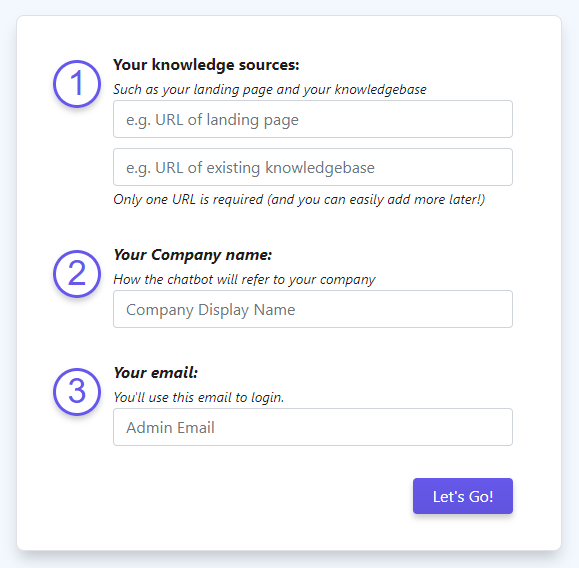
- Your AI will begin training immediately on the websites you provide, and you now have your Resolve247 account! While the AI is training you can proceed to connect your Resolve247 account with your HubSpot account as described below.
Connecting to HubSpot
Let’s connect your Resolve247 account to HubSpot:
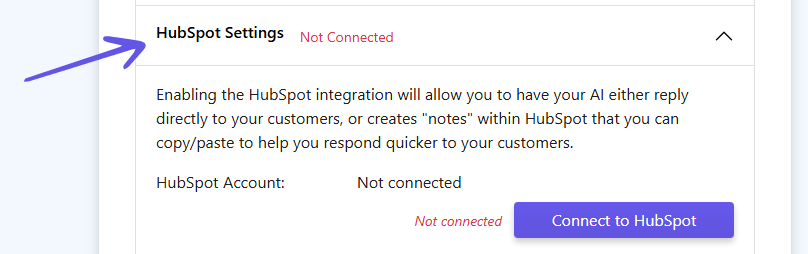
- Go to the “HubSpot Settings” dropdown and click “Connect to HubSpot”.
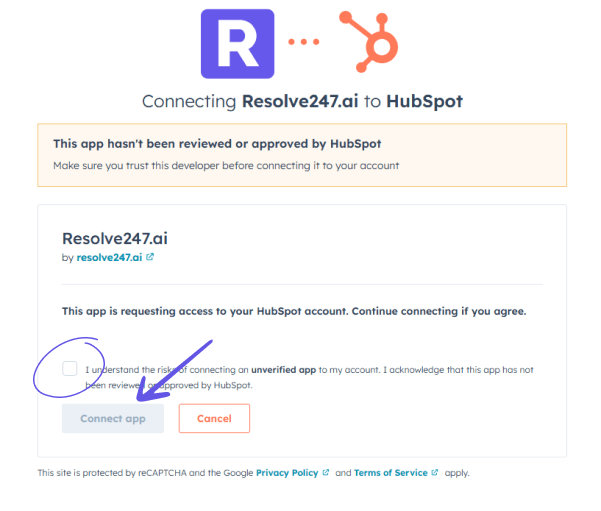
- You’ll be redirected to a HubSpot page, which may ask you to login to your account, and confirm you’re happy to link Resolve247 with your HubSpot account. Check the “I understand” box, and then click “Connect App” to proceed.
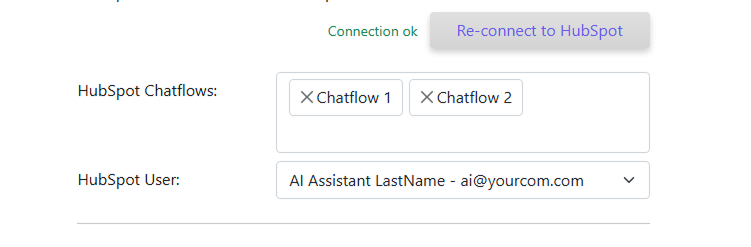
- Once approved, you’ll be returned to the Resolve247 HubSpot settings page – you can verify the connection by noticing it will say “Connection ok” and show your HubSpot account name.
- Now you just need to choose which of your existing Chatflow(s) you would like Resolve247 to interact with, and as what User. You may wish to create a duplicate Chatflow for initial testing, so here you could select that “testing” chatflow (and then once you are happy you can swap it over to your Live chatflow).
- We would recommend using a “Live Chat” chatflow (not a rules-based or “bot” chatflow) as this provides a more fluid experience for your Customer.
- You can have Resolve247 respond to multiple different chatflows if you need.
- If you are using a “CRM Inbox” then the User you choose can be a free User (does not require a Seat) – you can create a User called “AI assistant” to make it clear to the Customer this is AI. This article shows how to create a new User in HubSpot.
- However if you are using the “Helpdesk Inbox” then HubSpot requires the User to have a seat allocated to them to be able to create messages in that mailbox, so you will likely want to select an existing User.
Testing Resolve247 in HubSpot
- Resolve247 will default to creating a Comment in HubSpot instead of responding directly to the customer. This is so you can test how the AI would respond to real questions, but without responding to the customer.
- Alternatively you can create a duplicate Chatflow for testing and have the AI send replies to that Chatflow.

- If connected to HubSpot, your Demo page will show a button to show your HubSpot widget on the Demo page, so you can test the exact experience your Customers and your Team will experience.
- Please note that the Chatflow that is shown on the Demo page will depend entirely on your Chatflow settings within HubSpot (regardless of which Chatflow you selected for Resolve247 to respond to). If you are not seeing the expected Chatflow, this troubleshooting article covers how to resolve this (or you can get in contact with us and we are happy to help!).
Customising AI behaviour
You can adjust the AI to suit your workflow. Some of the behaviours you can change are:
- Custom Instructions – this is a really flexible tool to get the AI to be really helpful. For example, if you want the AI to refer to a promotion if someone asks about a certain subject, or to respond with a specific answer on certain topics. You can also include how a customer would be able to contact a human, so the AI can point them in the right direction if they need a human.
- Start with AI or wait to be activated – by default the AI is active at the start of the conversation, but you can also have the AI only start reacting after a Trigger phrase is typed.
- Auto-sleep AI – if a human support agent enters the chat, the AI will automatically stop responding for this defined period of time (default 60mins since the last huma agent message).
- Trigger phrases – if you want to be able to handover to a human agent, then you can provide multiple phrases that will deactivate the AI, provide a handover message, create a ticket in HubSpot, and then sleep while waiting for a human agent.
- Create HubSpot Ticket on handover – you can create a ticket in HubSpot when a customer wants to talk to a human, including choosing the pipeline, stage, ticket name and custom properties too.

- Welcome / Handover messages – when the customer uses the deactivation trigger phrase (or uses the activation phrase, if not active at the start of the conversation) you can customise the message that the AI will send such as “Ok a human will be here shortly“.
- Thinking message – A short message that is displayed while the AI is working on longer responses.
- Sources – whether to include links to the sources used at the end of the message.
There are many more settings and customisations we can make behind the scenes, so if there’s something missing please let us know at [email protected].
Ready? Turn On AI replies
When you’re happy for Resolve247 to respond to your customers messages in HubSpot, you can make it Live by selecting “Send reply to customer” and checking that your Live chatflow is selected from the settings page.

Remember to click “Save HubSpot Settings”.

Congratulations! You now have an AI helping your customers 24/7 to give them the instant answers they want!
How can we help?
Need help or have questions? We’d would love to hear from you, please reach out to us at [email protected].